
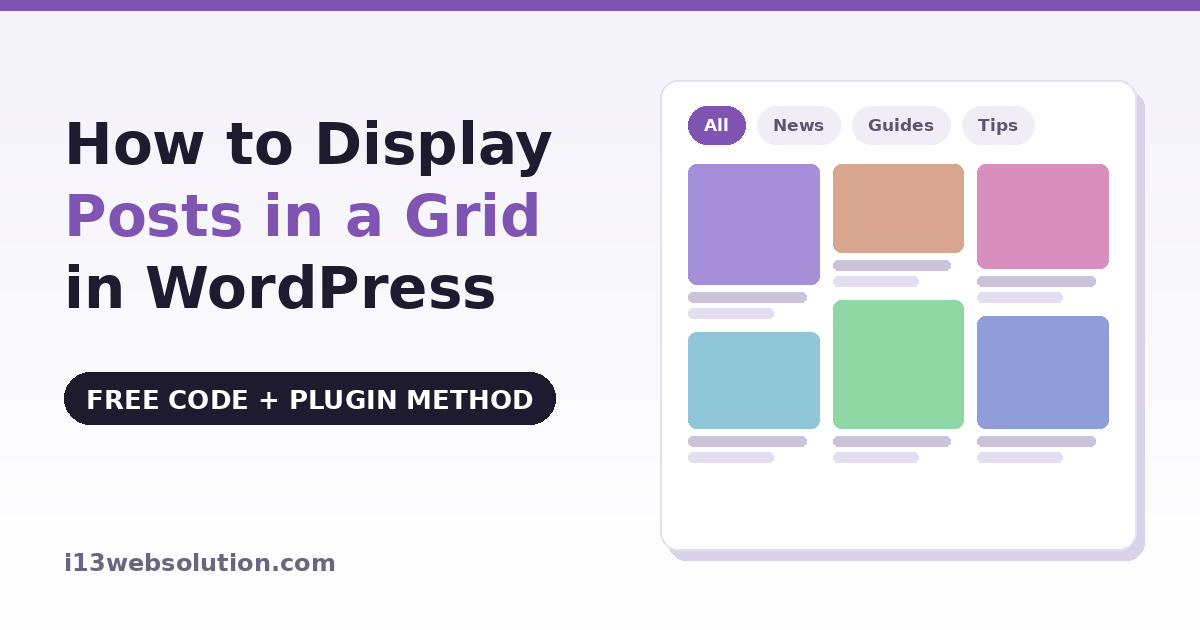
By default, WordPress shows your posts as a plain vertical list — one after another, lots of scrolling, and only the newest post gets any attention. A post grid fixes that: visitors see 6–12 posts at a glance, older content gets discovered, and your blog page, homepage, or category pages instantly look like a professionally designed site.
In this guide you’ll learn two ways to display posts in a grid in WordPress:
- Method 1: A free code snippet using WP_Query and CSS Grid — no plugin needed
- Method 2: A plugin method that adds layouts (masonry, magazine, overlay), category filter tabs, and related posts — no coding needed
Method 1: Display Posts in a Grid with a Free Code Snippet
If you’re comfortable editing your theme, you can build a basic post grid with a shortcode. Add this to your child theme’s functions.php or a code snippets plugin:
add_shortcode( 'my_post_grid', 'i13_simple_post_grid' );

function i13_simple_post_grid( $atts ) {
    $atts = shortcode_atts( array( 'posts' => 9, 'category' => '' ), $atts );

    $query = new WP_Query( array(
        'posts_per_page' => absint( $atts['posts'] ),
        'category_name'  => sanitize_text_field( $atts['category'] ),
        'post_status'    => 'publish',
    ) );

    if ( ! $query->have_posts() ) {
        return '<p>No posts found.</p>';
    }

    $html = '<div class="my-post-grid">';
    while ( $query->have_posts() ) {
        $query->the_post();
        $html .= '<article class="my-post-card">';
        if ( has_post_thumbnail() ) {
            $html .= '<a href="' . esc_url( get_permalink() ) . '">'
                   . get_the_post_thumbnail( null, 'medium_large' ) . '</a>';
        }
        $html .= '<h3><a href="' . esc_url( get_permalink() ) . '">'
               . esc_html( get_the_title() ) . '</a></h3>';
        $html .= '<p>' . esc_html( wp_trim_words( get_the_excerpt(), 18 ) ) . '</p>';
        $html .= '</article>';
    }
    $html .= '</div>';

    wp_reset_postdata();
    return $html;
}
Then add this CSS under Appearance → Customize → Additional CSS:
.my-post-grid {
    display: grid;
    grid-template-columns: repeat( 3, 1fr );
    gap: 24px;
}
.my-post-card img {
    width: 100%;
    height: 200px;
    object-fit: cover;
    border-radius: 8px;
}
.my-post-card h3 { margin: 12px 0 6px; font-size: 18px; }

@media ( max-width: 900px ) {
    .my-post-grid { grid-template-columns: repeat( 2, 1fr ); }
}
@media ( max-width: 600px ) {
    .my-post-grid { grid-template-columns: 1fr; }
}
Now put [my_post_grid posts="9" category="news"] on any page or post, and you get a responsive 3-column grid (2 columns on tablets, 1 on phones) with the featured image, title, and a short excerpt. A few notes:
object-fit: coveris what keeps every card the same height even when your featured images have different shapes.- Change
repeat( 3, 1fr )to 2 or 4 for wider or narrower cards. - The shortcode accepts a category slug, so you can place different grids on different pages.
The Problem with the Code Snippet Method
This snippet gives you one honest, working grid — and for a simple blog page it might be enough. But as soon as your site grows, the limits show up quickly:
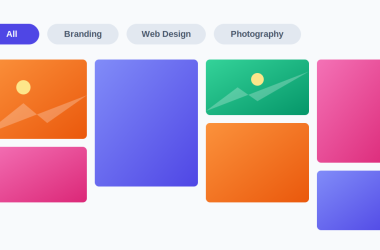
- One layout only. Every card is the same rectangle. No masonry (Pinterest-style staggered cards), no magazine layout with a hero post, no overlay cards with the title on the image — those each require substantially more CSS and JavaScript.
- No filtering. Visitors can’t click a category tab to narrow the grid. Building AJAX filter tabs that re-render the grid without reloading the page is a real JavaScript project, not a snippet.
- No pagination. The grid shows your 9 posts and stops. Load-more or AJAX paging means more custom code.
- Maintenance is on you. Theme change, WordPress update, editor complaining about the shortcode — you’re the support team.
- No insight. You can’t see which posts get clicked from the grid, so you’re arranging content blind.
Method 2: Post Grid Plugin with Layouts, Filter Tabs and Related Posts
This is what our Post Sliders & Post Grids plugin does — take the posts you already have and lay them out, with the layouts and filtering already built. No page builder, no designing each card by hand:
- Install Post Sliders & Post Grids from the WordPress.org plugin directory (free)
- Go to Post Sliders & Grids → Add Post Grid, pick your categories, columns, and colors
- Add it to any page with the Gutenberg block (every setting lives in the editor sidebar) or a shortcode
The free version includes a fully working grid and slider with category filter tabs — the feature that’s hardest to code by hand. Visitors click a tab and the grid re-renders in place, without reloading the page, and tabs are built only from categories the grid actually contains, so nobody ever lands on an empty result.
What the Pro Version Adds
The Pro version (one-time payment, no subscription) is for sites that outgrow one grid:
- Three more layouts: Masonry (cards flow to natural height, no gaps), Overlay (title sits on the featured image), and Magazine (first post runs full-width as a hero, the rest tile beneath — ideal for news-style homepages)
- Unlimited grids and sliders, each configured independently
- Filter by tags or any custom taxonomy, with dropdown and multi-select styles and post counts per term
- Related posts under every article — matched by category, tag, or custom taxonomy, sorted by relevance, and inserted automatically below each post without template editing (replaces a separate related-posts plugin)
- Click stats: clicks, views, and click-through rate per grid for the last 30 days, with a most-clicked-posts breakdown — so you learn which headlines actually earn attention. No visitor data is stored (no IPs, no cookies), so there’s nothing to add to your privacy policy
- AJAX pagination, vertical and ticker sliders, and social sharing buttons
Which Method Should You Use?
Use the code snippet if: you want one simple grid on one page, you’re comfortable maintaining PHP, and you don’t need filtering or extra layouts. It’s free and genuinely works.
Use the plugin if: you want filter tabs, masonry or magazine layouts, related posts, or more than one grid — or you simply don’t want to maintain custom code through theme and WordPress updates. Start with the free version; upgrade only if you need the Pro layouts or stats.
Frequently Asked Questions
How do I display posts in a grid in WordPress without a plugin?
Use a WP_Query loop inside a shortcode and style the output with CSS Grid — the complete code is in Method 1 above. It produces a responsive 3-column grid with featured images, titles, and excerpts.
Can I show a post grid in WordPress without a page builder?
Yes. Both methods in this guide work with the standard WordPress editor — the code method via a shortcode, and the plugin method via a Gutenberg block or shortcode. No Elementor or other page builder is required.
How do I add category filter tabs to a WordPress post grid?
Filter tabs need JavaScript that re-queries posts and re-renders the grid without reloading the page — impractical as a snippet. The free Post Sliders & Post Grids plugin includes AJAX category filter tabs; the Pro version extends filtering to tags and custom taxonomies with dropdown and multi-select styles.
What is the difference between a post grid and masonry layout?
A standard grid gives every card the same height, cropping images to fit. A masonry layout lets each card keep its natural height and staggers them like a Pinterest board — it needs featured images with varying aspect ratios to show its effect.
Can a post grid show WooCommerce products or custom post types?
The code snippet targets blog posts, though you can adapt the WP_Query. The Post Sliders & Post Grids Pro plugin supports any registered public post type, including WooCommerce products, from a dropdown setting.
Post Sliders & Post Grids is developed by i13 Web Solution — free version on WordPress.org, Pro version with a 30-day money-back guarantee. Questions? Contact us — we answer every email.
Next >> How to create Thumbnail Slider