

Growing an email list is one of the few marketing channels you fully own — unlike social media followers, subscribers on your list can’t be taken away by an algorithm change. A newsletter signup popup is still one of the most effective ways to grow that list, but it’s easy to get wrong: too aggressive, and it annoys visitors; too hidden, and nobody sees it.
This guide covers how to add one properly — timed right, GDPR-compliant, and connected to an actual email service so those signups go somewhere useful.
Why a popup, not just a sidebar form?
Sidebar and footer signup forms are easy to scroll past without noticing. A popup — shown once, at the right moment — gets seen. The key is right moment: showing it instantly on page load annoys visitors before they’ve decided if they even like your content. Showing it based on scroll depth, time on page, or exit-intent (when a visitor’s mouse moves toward closing the tab) tends to convert far better than an immediate popup.
What to look for in a WordPress newsletter popup plugin
- A real email service connection — Mailchimp, Brevo, or similar. A plugin that only stores subscribers in your WordPress database and nowhere else means you’ll need to manually export and re-import them later, which doesn’t scale.
- GDPR consent option — a checkbox with customizable terms/privacy links, if you have visitors in the EU/UK.
- Native Gutenberg block support — so you can embed the same form inline in posts, not just as a popup.
- Display timing control — cookie-based frequency limits, so the same visitor doesn’t see the popup on every single page load.
- Exit-intent triggering, if available — often converts better than a timed popup since it only appears when someone’s already leaving, at zero cost to the browsing experience.
A few options to consider
OptinMonster — probably the most well-known name in this space, used by large sites like McAfee and American Express. It’s a cloud-based tool that works across WordPress and other platforms, with drag-and-drop campaign building and detailed targeting rules. The tradeoff: it’s subscription-only, starting around $9-16/month on the entry plan and scaling up to $49+/month for exit-intent and advanced targeting — there’s a free WordPress plugin, but it’s fairly limited compared to any paid tier.
Thrive Leads — built specifically for WordPress (unlike OptinMonster’s cross-platform approach), with 450+ opt-in templates and strong A/B testing built in. Pricing runs roughly $99-199/year as a standalone plugin, or bundled into the wider Thrive Suite. A solid choice if you want deep testing and targeting and don’t mind the WordPress-only, subscription-based approach.
Mailchimp’s own WordPress plugin — free, and the simplest option if you’re already committed to Mailchimp specifically. The tradeoff is flexibility: it’s built around Mailchimp only, so if you ever want to switch email services or run popups with more style variety, you’d need a different plugin.
Email Subscription Popup — free plugin with a native Gutenberg block, GDPR consent checkbox, and built-in Mailchimp sync (up to 100 new subscribers/month at no cost) — without locking you into a single ESP the way Mailchimp’s own plugin does. The Pro version adds exit-intent triggering, 9 popup styles, and unlimited Mailchimp/Brevo/Kit/Klaviyo syncing, as a one-time payment rather than the recurring subscriptions OptinMonster and Thrive Leads both require. See the plugin →
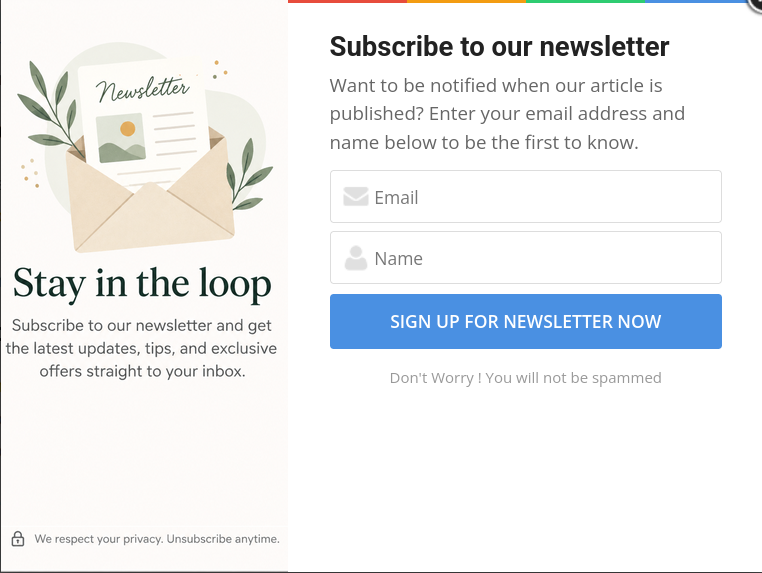
How to add a newsletter popup to WordPress
- Install a newsletter popup plugin from Plugins → Add New
- Activate it, then look for its settings menu in your WordPress admin sidebar
- Connect your email service (Mailchimp, etc.) using an API key from your ESP’s account settings
- Customize the popup heading, button text, and (if you have EU/UK visitors) enable the GDPR consent checkbox
- Set the display frequency — most plugins let you control how many days pass before the same visitor sees the popup again
- If the plugin has a Gutenberg block version of the same form, consider embedding it inline at the end of high-traffic blog posts too, not just as a popup
A note on GDPR
If any of your visitors are in the EU or UK, you’re expected to get clear, informed consent before adding someone to a mailing list. A checkbox that’s pre-ticked, or consent language buried in fine print, doesn’t meet that bar. Look for a plugin where the consent checkbox is unticked by default and the text is clearly visible above the signup button.