

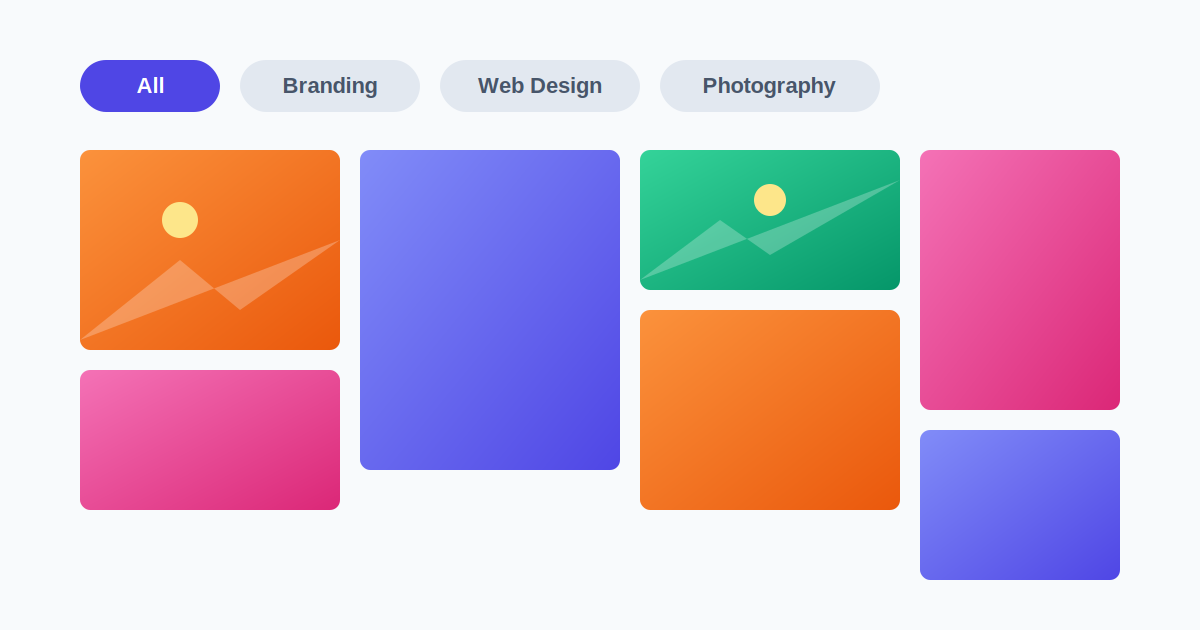
A portfolio page is often the first thing a potential client or employer checks before deciding whether to reach out. A plain list of images doesn’t do that job well — visitors want to quickly narrow down to the type of work that’s relevant to them, whether that’s by category, project type, or medium. That’s what a filterable portfolio grid solves.
This guide covers what to look for in a portfolio plugin, and how to set one up with working category filters.
What makes a portfolio grid “filterable”
Instead of a single long scroll of images, a filterable grid adds clickable category buttons above the grid — “Web Design,” “Photography,” “Branding,” etc. — and clicking one instantly narrows the grid to just that category, usually with a smooth animation, without reloading the page.
What to look for in a WordPress portfolio plugin
- Multiple layout options — Masonry (Pinterest-style, varying heights), Justified (even rows, cropped to fit), and classic Grid all suit different kinds of work. A photography portfolio often looks better in Masonry; a design agency’s case studies often look cleaner in a uniform Grid.
- AJAX filtering — filtering should happen instantly in the browser, not reload the whole page each time someone clicks a category
- Lightbox preview — being able to click a portfolio item and see a larger preview without leaving the page
- Native Gutenberg block — for embedding the grid without shortcodes
- Category management — the ability to assign multiple categories to a single project, since real work often spans more than one category
A few options to consider
Responsive Filterable Portfolio — supports Masonry, Justified, and classic Grid layouts in one plugin (rather than picking just one style), with AJAX category filtering and a native Gutenberg block. The free version covers the core grid and filtering; the Pro version adds a lightbox preview, unlimited portfolio items, and additional layout customization. See the plugin →
Visual Portfolio — one of the most widely used options in this space, with 60,000+ active installs. It’s a native Gutenberg block plugin with several visual transition effects and layout styles, and it’s genuinely lightweight in testing. A solid free-tier choice if you mainly need a clean grid with good performance and don’t need deep filtering customization.
Radius Portfolio — around 8,000 active installs, built around isotope-style filtering (the smooth re-flowing animation when you switch categories) plus carousel slider layouts. A good fit if that specific filtering animation style matters to you visually.
Advance Portfolio Grid — a newer, actively-developed option with shortcode-based setup, Elementor widget support, and both grid and slider layouts, including AJAX-powered filtering in its Pro tier. Reviews mention fast support response times as a strength.
How to create a filterable portfolio grid in WordPress
- Install a portfolio plugin from Plugins → Add New
- Activate it, then look for its dedicated menu in your WordPress admin sidebar to start adding portfolio items
- For each item, upload an image and assign it to one or more categories (e.g., “Branding,” “Web Design”)
- Choose your layout — Masonry, Justified, or Grid — based on the kind of work you’re showing
- Add the grid to a page using its Gutenberg block, or the shortcode/widget it provides
- Test the category filter buttons — clicking one should narrow the grid instantly
Choosing the right layout for your work
- Masonry — best for photography, artwork, or anything where images naturally vary in aspect ratio; items sit at their natural height instead of being cropped
- Justified — a good middle ground; rows stay even but images aren’t forced into identical squares, so less cropping than a strict grid
- Classic Grid — cleanest, most uniform look; works well for case studies or anything where consistency matters more than showing images at their natural proportions
Frequently asked questions
Do I need to create separate pages for each portfolio category? No — with AJAX filtering, one page holds everything, and visitors filter by clicking category buttons. You only need separate pages if you specifically want distinct URLs per category for other reasons (e.g., a very deliberate SEO strategy).
Can one project belong to more than one category? Yes, in a well-built portfolio plugin — a project like a “branded website redesign” could show up under both “Branding” and “Web Design” filters at once.
Will this work with my page builder (Elementor, Divi, etc.)? Most portfolio plugins provide a shortcode that works inside any page builder’s HTML/text element, in addition to a native Gutenberg block — check the specific plugin’s documentation for dedicated widgets if you want deeper page-builder integration.
Does a portfolio grid slow down my page? It can, if all images load at once. Look for a plugin with lazy loading, so images only load as visitors scroll to them.