

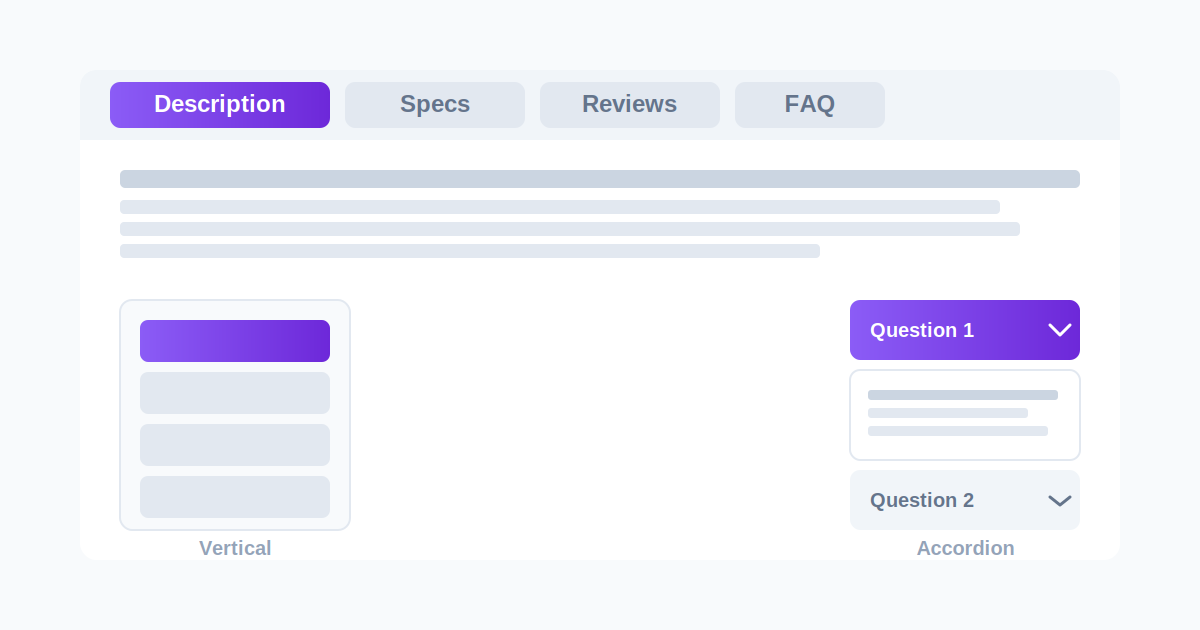
Long pages lose visitors. A page packed with specs, FAQs, or multiple sections of content can feel overwhelming if it’s all just stacked one after another. Tabs solve this by letting visitors choose what they want to see — click a tab, and only that section’s content shows, with everything else tucked out of view until needed.
This guide covers what to look for in a WordPress tabs plugin, and how to add tabbed (or accordion) content to your site.
Tabs vs. accordion — which layout fits your content?
- Tabs — horizontal or vertical labels, one section visible at a time. Best when visitors are comparing options side-by-side (product specs, pricing tiers) and only need to see one at a time.
- Accordion — a vertical stack of collapsible sections, any of which can expand independently. Best for FAQs and long-form content where visitors scan down the page and open whichever question applies to them.
A good plugin should let you switch between both, since the right choice often depends on the specific page, not a site-wide rule.
What to look for in a WordPress tabs plugin
- Both horizontal and vertical tab layouts — vertical tabs work better in narrower content columns or sidebars; horizontal suits full-width sections
- Automatic mobile fallback — tabs that don’t fit a phone screen should collapse into an accordion automatically, rather than forcing horizontal scrolling
- Native Gutenberg block — for adding tabs without shortcodes
- Lightweight, no unnecessary JavaScript bloat — some older tabs plugins load full jQuery UI libraries for something that could be done with much less code
- WooCommerce product tabs support, if you run a store — being able to add custom tabs to product pages beyond the default Description/Reviews tabs
A few options to consider
WP Responsive Tabs — built specifically around covering horizontal, vertical, and accordion layouts in a single lightweight plugin, with automatic mobile-accordion fallback and a native Gutenberg block. The free version covers all three layout types in a single Boxed style, capped at 3 tab sets. The Pro version adds unlimited tab sets, 3 additional tab styles (Underline, Pill/Segmented, and high-contrast Contained), scrollable horizontal tabs with drag-to-scroll, a Font Awesome icon picker per tab, and full tab management (add/edit/reorder/delete) directly from the Gutenberg block instead of switching to a separate admin screen. See the plugin →
Tabby Responsive Tabs — a simple, lightweight, shortcode-based plugin that specifically handles the mobile problem well: horizontal tab groups automatically convert to a stacked accordion layout on smaller screens, with no separate configuration needed.
Easy Accordion — broader in scope, covering both accordion and tab layouts, with 20,000+ active installs and built-in WooCommerce product page support — a strong option if you specifically need tabs tied into WooCommerce products.
Shortcodes Ultimate — a general-purpose shortcode plugin (buttons, boxes, columns) that includes tabs and accordions as part of a much larger toolkit, useful if you want one plugin covering many shortcode needs rather than a dedicated tabs plugin.
How to add tabs to WordPress
- Install a tabs plugin from Plugins → Add New
- Activate it, then look for its dedicated settings menu in your WordPress admin sidebar
- Create your first tab group, and add a title and content for each tab
- Choose horizontal, vertical, or accordion layout
- Add it to a page using the Gutenberg block, or the shortcode/widget it provides
- Preview on mobile — confirm horizontal tabs collapse into a readable accordion instead of requiring horizontal scrolling
Frequently asked questions
What’s the difference between a tabs plugin and an accordion plugin? Some plugins only do one or the other; a combined plugin lets you use tabs where visitors compare options side-by-side, and accordion where they’re scanning a long list (like an FAQ), without needing two separate plugins.
Will tabs work well on mobile automatically? Only if the plugin specifically builds in a mobile fallback. Horizontal tabs that don’t adapt can force awkward horizontal scrolling on a phone — check for automatic accordion-on-mobile behavior before assuming any tabs plugin handles this well.
Can I add tabs to a WooCommerce product page? Some tabs plugins support this natively, replacing or extending the default Description/Reviews tabs with custom ones — worth checking specifically if you run a store, since not every general-purpose tabs plugin covers this.
Do tabs slow down my page? A well-built tabs plugin shouldn’t — content for inactive tabs is just hidden with CSS, not removed, so there’s minimal extra load. Heavier, older plugins that load full jQuery UI libraries for a simple tab switch can add unnecessary weight; lighter, more modern plugins avoid this.
