

One of the first questions every online shopper asks before clicking “Add to Cart” is simple: when will I get it? If your WooCommerce store doesn’t answer that question on the product page, many customers won’t email you to ask — they’ll just leave and buy from a store that does. Amazon trained shoppers to expect a delivery date next to every product, and stores that show one convert noticeably better than stores that make customers guess.
Out of the box, WooCommerce doesn’t display any delivery estimate on product pages, in the cart, or at checkout. In this guide, you’ll learn two ways to add an estimated delivery date to WooCommerce:
- Method 1: A free code snippet that adds a simple delivery estimate to every product page
- Method 2: An automatic method that shows each customer an accurate date range based on their real location and your shipping zones
Method 1: Add a Delivery Estimate with a Free Code Snippet
If all your orders ship on roughly the same schedule, you can add a basic delivery estimate with a few lines of PHP. Add this to your child theme’s functions.php file or a code snippets plugin:
add_action( 'woocommerce_single_product_summary', 'i13_show_delivery_estimate', 25 );

function i13_show_delivery_estimate() {
    $min_days = 3; // minimum delivery time in business days
    $max_days = 7; // maximum delivery time in business days

    $start = date_i18n( 'M j', strtotime( "+{$min_days} weekdays" ) );
    $end   = date_i18n( 'M j', strtotime( "+{$max_days} weekdays" ) );

    echo '<p class="delivery-estimate">🚚 Estimated delivery: <strong>'
        . esc_html( $start . ' – ' . $end ) . '</strong></p>';
}
This displays something like “🚚 Estimated delivery: Jul 15 – Jul 21” under the Add to Cart button on every product page. A few notes on how it works:
+3 weekdaysin PHP’sstrtotime()automatically skips Saturdays and Sundays, so the dates respect business days.date_i18n()makes the month names follow your site’s language automatically.- Changing the priority number
25moves the message up or down on the product page (10 = after title, 25 = after Add to Cart).
You can style it with a little CSS:
.delivery-estimate {
    background: #f0f7f0;
    border-left: 4px solid #4caf50;
    padding: 10px 14px;
    font-size: 15px;
}
The Problem with the Code Snippet Method
The snippet works — but only if every customer, everywhere, gets delivery in the same 3–7 days. For most real stores, that’s not true, and the static approach quickly breaks down:
- Every visitor sees the same date. A customer in your own city and a customer on another continent both see “Jul 15 – Jul 21.” One of those estimates is wrong — and a wrong delivery promise creates refund requests and angry “where is my order?” emails.
- It ignores your shipping zones. You’ve already configured WooCommerce shipping zones with different methods and costs per region, but the snippet can’t read any of that.
- No order cutoff time. An order placed at 11 PM Friday and an order placed at 9 AM Monday show identical dates, even though they’ll ship days apart.
- It only appears on the product page. Nothing in the cart, at checkout, on the thank-you page, or in order emails — the places where delivery anxiety actually causes abandonment and support tickets.
- No per-product control. Pre-order items, made-to-order goods, and dropshipped products all get the same generic promise.
You could keep extending the snippet to handle all of this — but at that point you’re building and maintaining a full plugin inside your theme.
Method 2: Automatic Zone-Aware Delivery Dates (Per Customer)
This is exactly why we built Smart Delivery Estimates for WooCommerce. Instead of showing every visitor the same generic message, it detects each customer’s location automatically and shows the delivery window that actually applies to them — calculated from the WooCommerce shipping zones you’ve already configured.
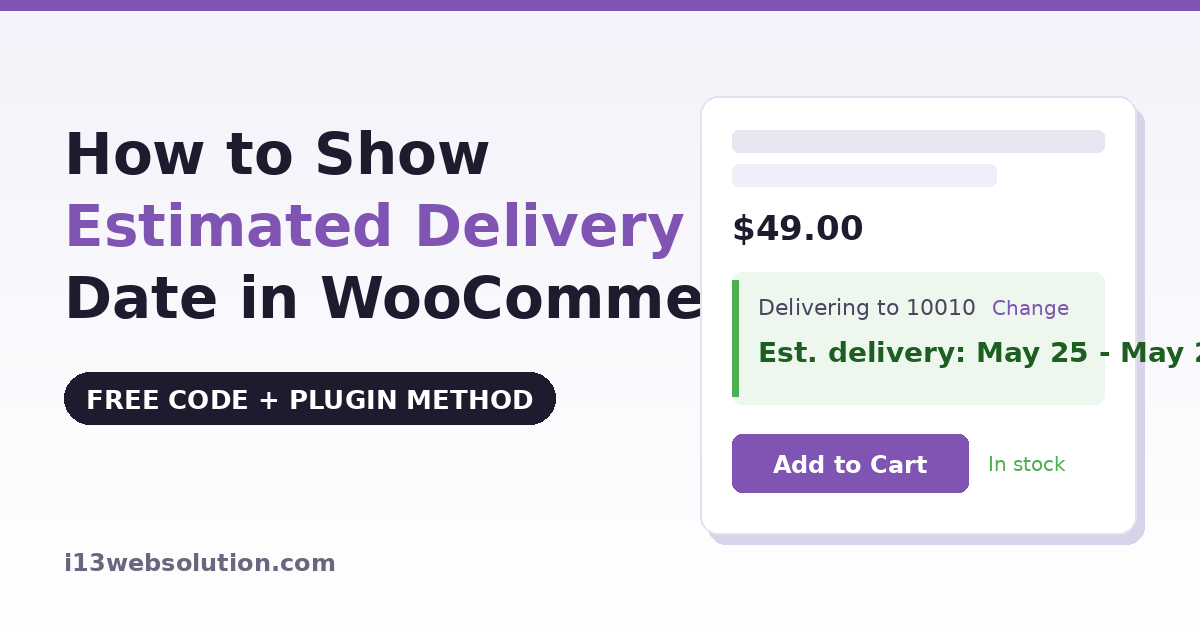
A customer in New York sees your US zone’s estimate. A customer in Toronto sees your Canada zone’s estimate. Neither of them has to type a postcode — the plugin detects their location via IP the moment they land on the page, and shows something like:
“Delivering to 10010 — Est. delivery: May 25 – May 27”
If the detected location is ever wrong, the customer clicks Change, enters their postcode, and the estimate updates in place.
Three Strategies Depending on How Your Store Ships
- Global Rules — one delivery window for the whole store. The plugin equivalent of the code snippet above, but with cutoff times, working-day logic, and display in cart, checkout, and emails included.
- Shipping Zone Based — each of your existing WooCommerce shipping zones gets its own delivery window. Ideal for stores shipping to multiple countries or regions.
- Shipping Zone + Method Based — each shipping method inside a zone carries its own estimate, so “Standard Shipping” shows 5–7 days while “Express” shows 1–2 days, automatically matching whatever the customer selects.
What You Get Beyond the Product Page
- Estimates everywhere they matter: shop/category pages, product page, cart, checkout (classic and WooCommerce Blocks), the order confirmation page, and order emails — which is where “where’s my order?” support tickets are prevented.
- Order cutoff times: “Order before 3:00 PM (Mon–Fri) for delivery May 25–27” — with the dates rolling over automatically after the cutoff passes.
- Working-day calculation: weekends skipped automatically, with optional public holiday skipping and handling/processing time on top.
- Per-product and per-category overrides: pre-order or made-to-order items can carry their own timing without affecting the rest of the store.
- Checkout postcode pre-fill: the detected postcode is passed into checkout, so postcode-dependent methods like USPS or Table Rate calculate correctly without the customer re-typing anything.
- Fully translatable dates: month and weekday names automatically follow your site’s language.
Setup Takes About Five Minutes
- Install and activate the plugin from the WooCommerce Marketplace.
- Go to WooCommerce → Settings → Smart Delivery Estimates.
- Pick your strategy (Global, Zone, or Zone + Method).
- Enter min/max delivery days for each zone (the plugin reads your existing zones — nothing to reconfigure).
- Optionally set a daily cutoff time and handling time — done.
No coding, and it works alongside your existing shipping plugins (Flat Rate, Free Shipping, Table Rate, USPS, FedEx, UPS) rather than replacing them.
Which Method Should You Use?
Use the free code snippet if: you ship to one region only, every order takes the same time, and you just want a simple message on product pages. It costs nothing and takes two minutes.
Use Smart Delivery Estimates if: you ship to more than one zone, delivery times differ by method, you want cutoff-time urgency messaging, or you want estimates to follow the customer through cart, checkout, and order emails. Accurate per-customer dates are what actually build the trust that converts — a generic date that’s wrong for half your visitors can do more harm than showing nothing.
Frequently Asked Questions
Does WooCommerce show estimated delivery dates by default?
No. WooCommerce shows shipping costs at checkout, but never delivery dates. You need either custom code or a plugin to display delivery estimates.
Can I show different delivery dates for different countries?
Not with a simple code snippet — that requires matching each visitor’s location to a shipping zone. Smart Delivery Estimates does this automatically via IP detection against your existing WooCommerce shipping zones.
Do delivery estimates work with the new WooCommerce Block Checkout?
The code snippet above only covers the product page. Smart Delivery Estimates supports both the classic shortcode cart/checkout and the newer WooCommerce Blocks cart and checkout.
Will delivery dates skip weekends and holidays?
The snippet in this guide skips weekends using PHP’s weekdays keyword. For public holidays, cutoff times, and handling time, you’ll need the plugin, which handles all three.
Can specific products show a different delivery time?
Yes — with Smart Delivery Estimates you can override the zone’s timing per product or per category, which is useful for pre-order and made-to-order items.
Also see: How to Add reCAPTCHA to WooCommerce Checkout
Smart Delivery Estimates is developed by i13 Web Solution and available on the official WooCommerce Marketplace with a 30-day money-back guarantee. Questions before buying? Contact us — we answer every email.