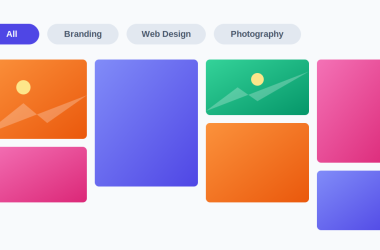

A filterable portfolio lets visitors click category buttons — like “All,” “Web,” “Photography,” “Branding” — and instantly see only the matching projects, without a page reload. It’s the standard way designers, agencies, and photographers show their work, and it keeps a large body of projects browsable in a compact, interactive grid.
WordPress doesn’t include a filterable portfolio, so in this guide you’ll learn two ways to create one:
- Method 1: A free code method using CSS Grid and a little JavaScript for the filtering
- Method 2: A plugin method that adds filter buttons, masonry and justified layouts, a lightbox, and Gutenberg/Elementor support with no code
Method 1: Build a Filterable Portfolio with Code
You can build a basic filterable grid with plain HTML, CSS, and a few lines of JavaScript. Add this inside a Custom HTML block on any page:
<div class="i13-filters">
  <button class="active" data-filter="all">All</button>
  <button data-filter="web">Web</button>
  <button data-filter="photo">Photography</button>
  <button data-filter="brand">Branding</button>
</div>

<div class="i13-portfolio">
  <a class="item web" href="/project-1"><img src="/img1.jpg" alt="Web project"></a>
  <a class="item photo" href="/project-2"><img src="/img2.jpg" alt="Photo project"></a>
  <a class="item brand" href="/project-3"><img src="/img3.jpg" alt="Branding project"></a>
  <!-- add more items, each with a category class -->
</div>

<script>
document.querySelectorAll('.i13-filters button').forEach(function (btn) {
  btn.addEventListener('click', function () {
    document.querySelector('.i13-filters .active').classList.remove('active');
    btn.classList.add('active');
    var f = btn.dataset.filter;
    document.querySelectorAll('.i13-portfolio .item').forEach(function (item) {
      item.style.display = (f === 'all' || item.classList.contains(f)) ? '' : 'none';
    });
  });
});
</script>
Then add the styling under Appearance → Customize → Additional CSS:
.i13-filters { margin-bottom: 20px; }
.i13-filters button {
    border: 1px solid #ddd;
    background: #fff;
    padding: 8px 16px;
    margin-right: 6px;
    border-radius: 20px;
    cursor: pointer;
}
.i13-filters button.active { background: #7f54b3; color: #fff; border-color: #7f54b3; }

.i13-portfolio {
    display: grid;
    grid-template-columns: repeat(3, 1fr);
    gap: 16px;
}
.i13-portfolio img { width: 100%; height: 220px; object-fit: cover; border-radius: 8px; }

@media (max-width: 600px) {
    .i13-portfolio { grid-template-columns: 1fr 1fr; }
}
Click a button and only the matching items stay visible. It’s a real, working filterable grid for a small, hand-maintained set of projects.
Where the Code Method Falls Short
The snippet works, but a portfolio that grows or needs to look polished quickly runs into the limits of hand-coding:
- No animation. Items snap on and off with
display:none— no smooth fade or reflow. Adding animated transitions means bringing in a library like Isotope and wiring it up correctly. - No masonry. Every item is forced to the same height, cropping images. A true masonry layout, where items keep their natural proportions and tile without gaps, is a real layout-engine problem, not a CSS tweak.
- No lightbox. Clicking opens the raw image or navigates away — there’s no popup gallery with next/previous, captions, or video support.
- Every item is hand-coded. Adding, reordering, or recategorizing projects means editing HTML each time — no admin screen, no reuse across pages.
- No video support. Showing a YouTube or Vimeo project in the grid needs embed handling the snippet doesn’t have.
Method 2: A Filterable Portfolio Plugin (No Code)
This is what our Filterable Portfolio plugin handles for you — you manage projects from an admin screen and drop the portfolio anywhere, with the filtering, layout, and lightbox already built and tested across themes:
- Install Filterable Portfolio from the WordPress.org directory and activate it
- Add your portfolio items (image, video, or link) and assign each to one or more categories
- Place the portfolio with a Gutenberg block, an Elementor widget, or a shortcode — filter buttons are generated automatically from your categories
The free version gives you a working filterable grid with a lightbox — enough for a simple portfolio page. The paid version adds the layouts and features a professional portfolio needs.
What the Pro Version Adds
The Pro version (one-time payment, no monthly fee) turns it into a full portfolio system:
- Masonry and justified layouts in addition to the standard grid, so images keep their natural proportions and tile cleanly.
- Animated filtering — items fade and reflow smoothly when a category is selected, rather than snapping.
- Lightbox with video support — open images and YouTube/Vimeo videos in a responsive popup with captions and next/previous navigation.
- Gutenberg block and Elementor widget, so you can build the portfolio visually in whichever editor you use, plus a shortcode for anywhere else.
- AJAX cross-page filtering, lazy loading, and pagination for large portfolios, keeping pages fast.
- Unlimited independent portfolios, each with its own categories, layout, and styling, and multisite compatibility.
Which Method Should You Use?
Use the code method if: you have a handful of image-only projects, you don’t need animation, masonry, or a lightbox, and you’re comfortable editing HTML to update the grid.
Use the plugin if: you want masonry or justified layouts, smooth animated filtering, a lightbox with video, an admin screen to manage projects, or a Gutenberg/Elementor build — or you simply don’t want to maintain custom code. Start with the free version and upgrade when you need the Pro layouts or video lightbox.
Frequently Asked Questions
Does WordPress have a built-in portfolio feature?
WordPress itself has no filterable portfolio. Some themes add a basic portfolio post type, but category filter buttons, masonry layouts, and a lightbox require either custom code or a dedicated portfolio plugin.
What is the difference between a grid and a masonry portfolio layout?
A standard grid forces every item to the same height, cropping images to fit. A masonry layout lets each item keep its natural proportions and tiles them without gaps, like a Pinterest board. Masonry needs images of varying heights to show its effect and is best handled by a layout engine rather than plain CSS.
Can I add a filterable portfolio with Elementor?
Yes. The Filterable Portfolio Pro plugin includes an Elementor widget, so you can drop the portfolio into any Elementor layout and configure categories, layout, and the lightbox visually. It also provides a Gutenberg block and a shortcode.
Can a WordPress portfolio show videos, not just images?
The free code method handles images only. The Filterable Portfolio Pro plugin supports video items such as YouTube and Vimeo, opening them in a responsive lightbox alongside your image projects.
Will the filtering work without reloading the page?
Yes. Both the code method and the plugin filter items on the client side, so clicking a category button updates the visible items instantly with no page reload. The plugin adds smooth animated transitions and, for large portfolios, AJAX loading.
Filterable Portfolio is developed by i13 Web Solution — free version on WordPress.org, Pro version with masonry and justified layouts, animated filtering, a video lightbox, and Gutenberg/Elementor support, backed by a 30-day money-back guarantee. Questions? Contact us — we answer every email.