
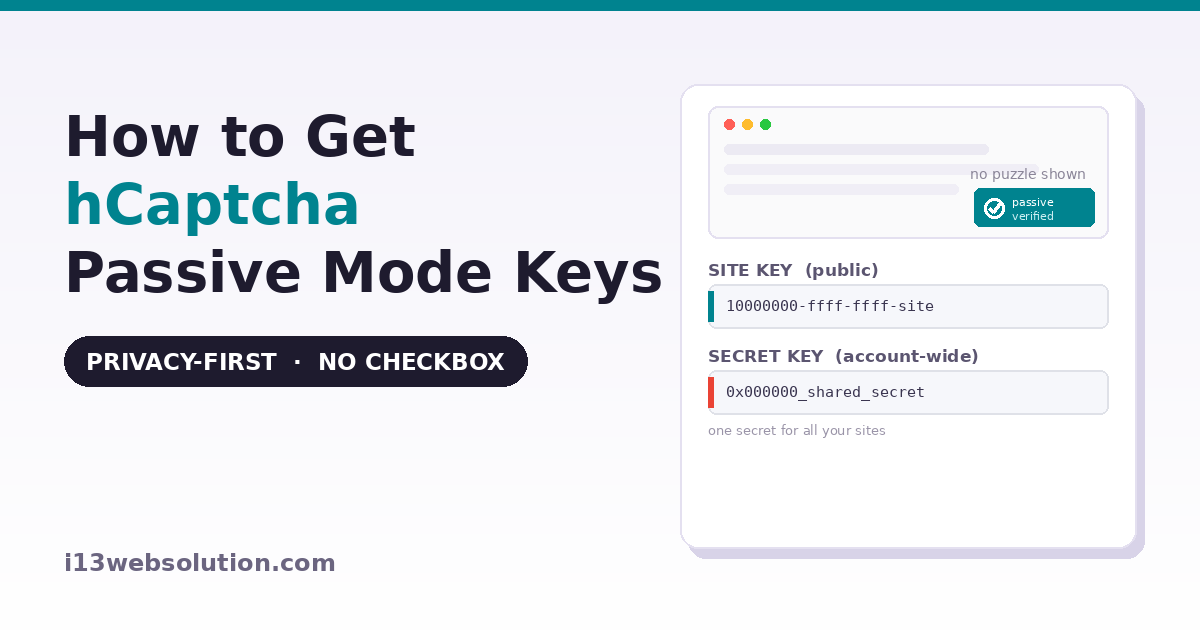
hCaptcha is a privacy-focused alternative to Google reCAPTCHA. In its Passive mode (sometimes called hidden mode), it verifies visitors silently in the background with no checkbox or puzzle shown — ideal for a frictionless checkout or login. To use it you need two values: a Site Key and a Secret Key. This guide shows how to create a Passive-mode site and get both keys from your hCaptcha account.
Please note: hCaptcha’s Passive mode is available only on an Enterprise hCaptcha account. If you are on a free account, you can still use hCaptcha’s standard checkbox challenge — this guide covers the Passive (hidden) setup specifically.
How to Get hCaptcha Passive Mode Site Key and Secret Key
Step 1 — Add a site in your hCaptcha dashboard
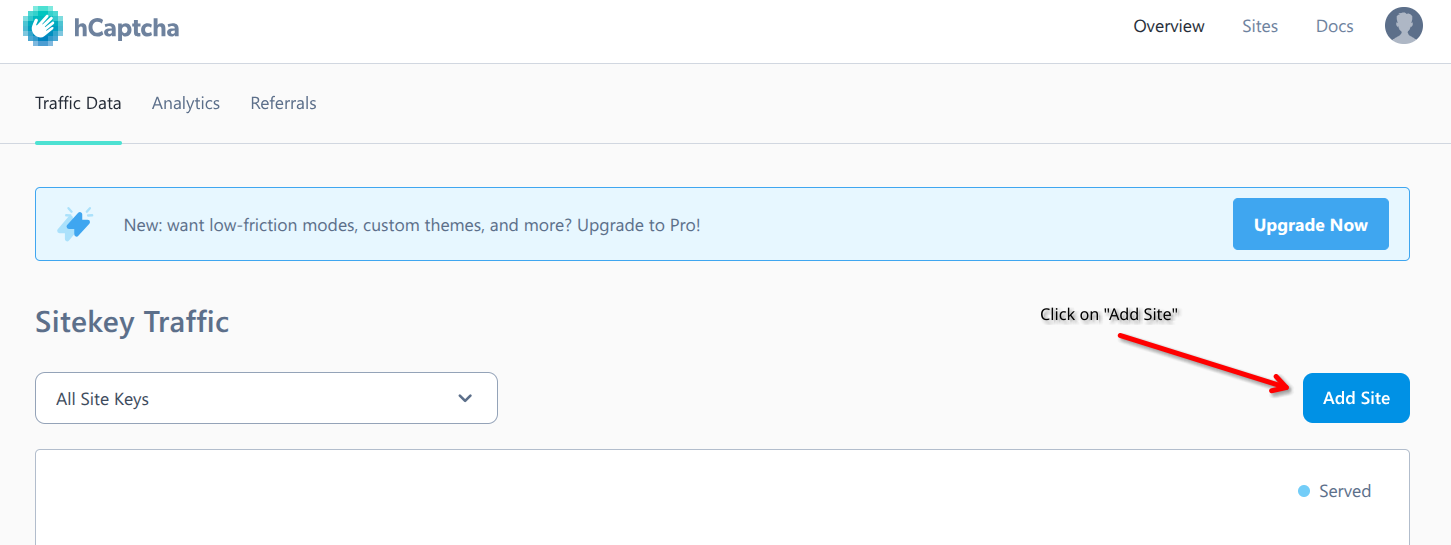
- Sign in to your hCaptcha account at dashboard.hcaptcha.com.
- Click Add Site.
Step 2 — Set a reference name and add your domain
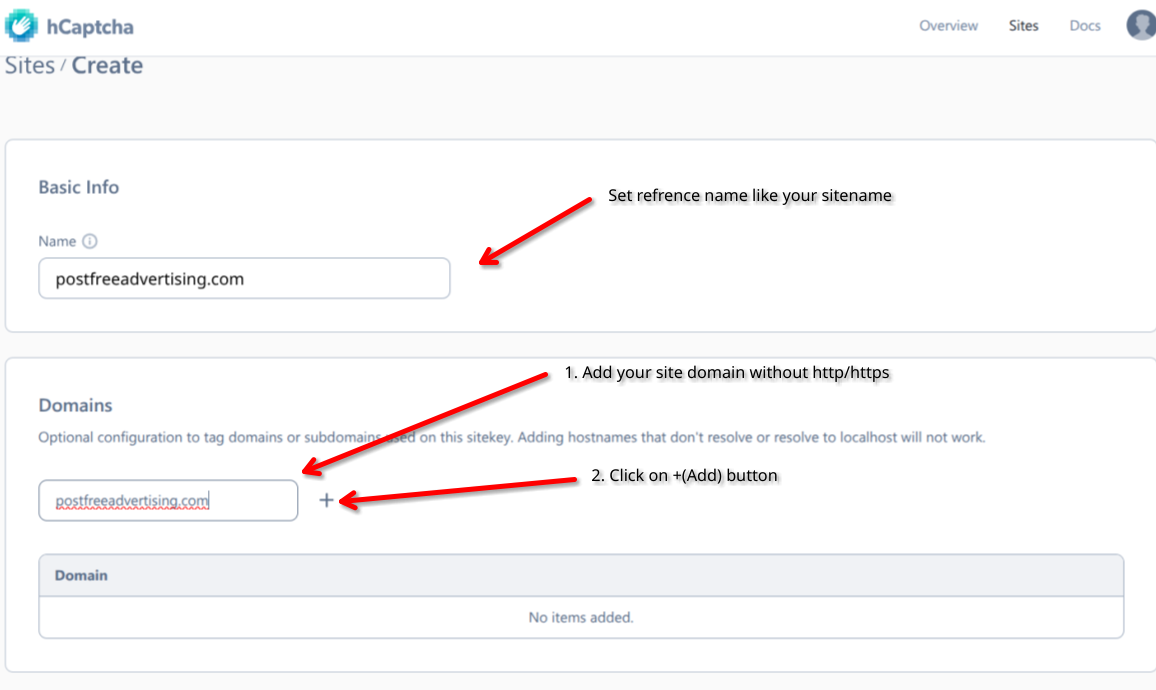
- Enter a reference name, add your domain name, and click the + to add it.
Step 3 — Choose Passive mode
- Under settings, choose Passive Mode. (This mode requires an Enterprise account.)
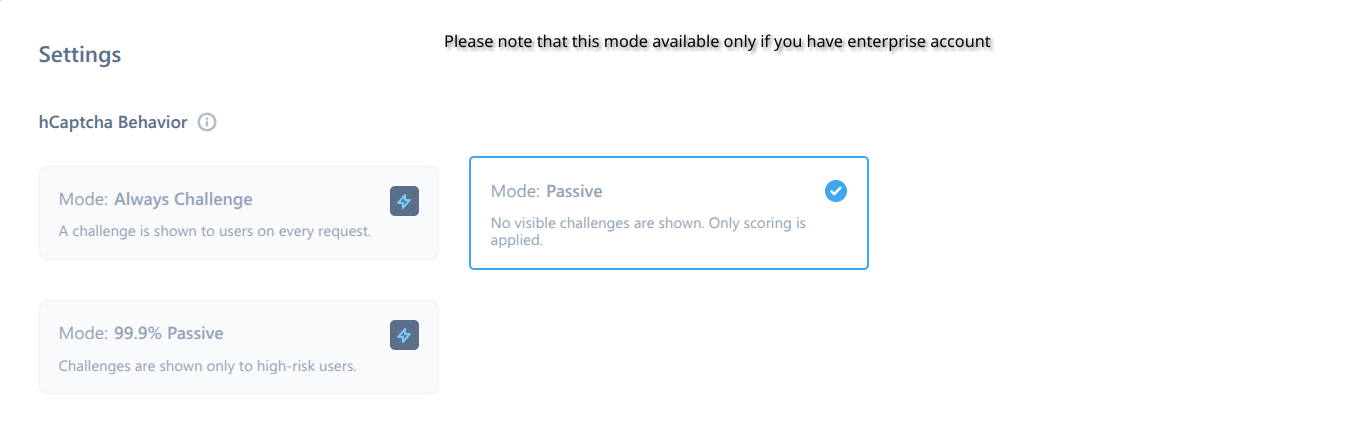
- Click Save.

Step 4 — Copy your Site Key
- You’ll be taken to the Sites page listing your site keys. Copy the Site Key here, or click the site name to open it.

- On the site’s configuration page, you’ll see the Site Key.
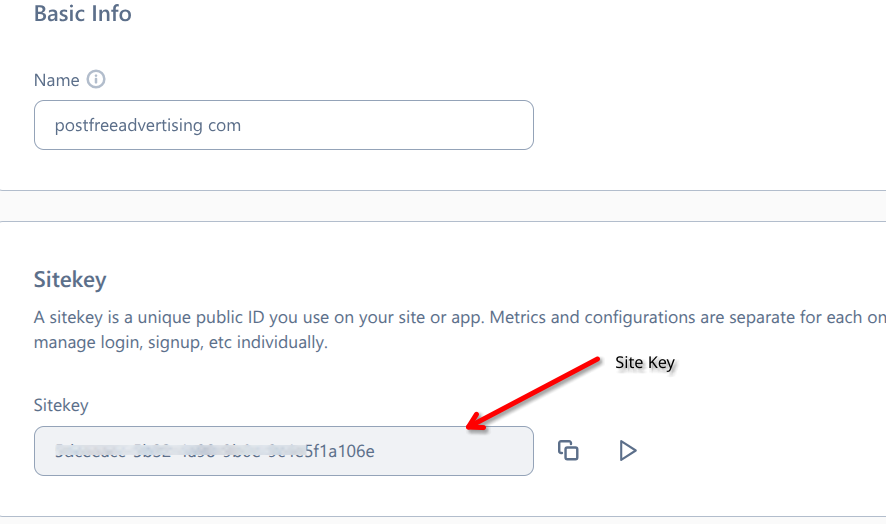
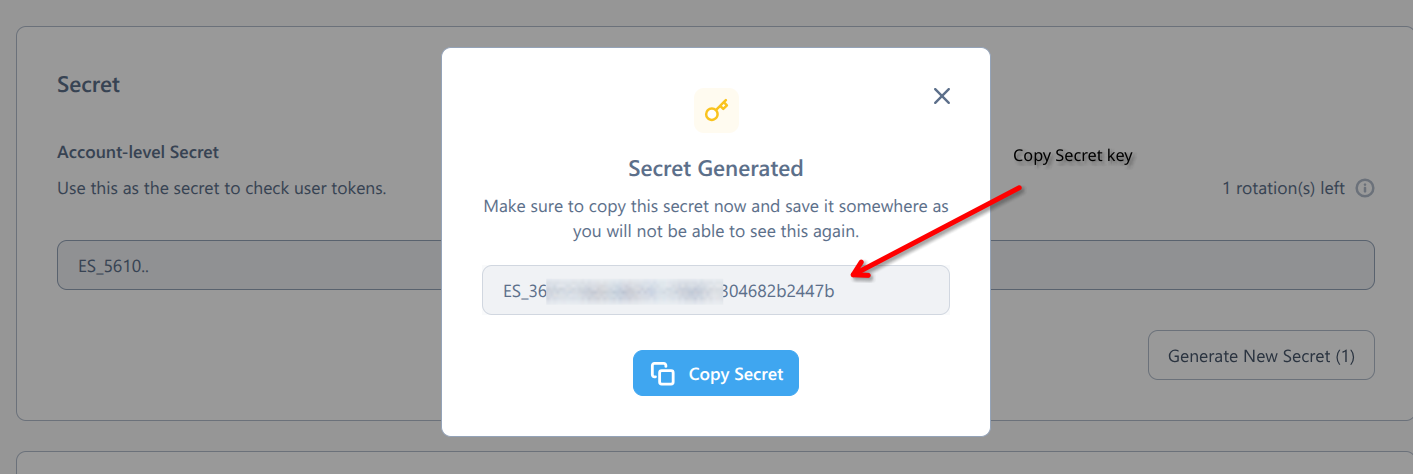
Step 5 — Generate and copy your Secret Key
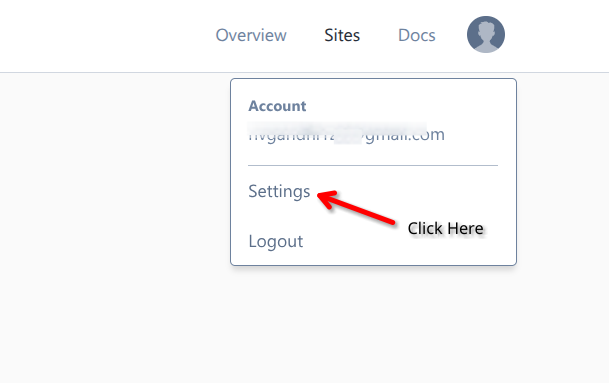
- Click Settings under your avatar in the top-right corner.
- Find the Secret Key settings. Note: hCaptcha uses one Secret Key for your whole account — it is shared across all sites you add, and generating a new secret invalidates the old one.
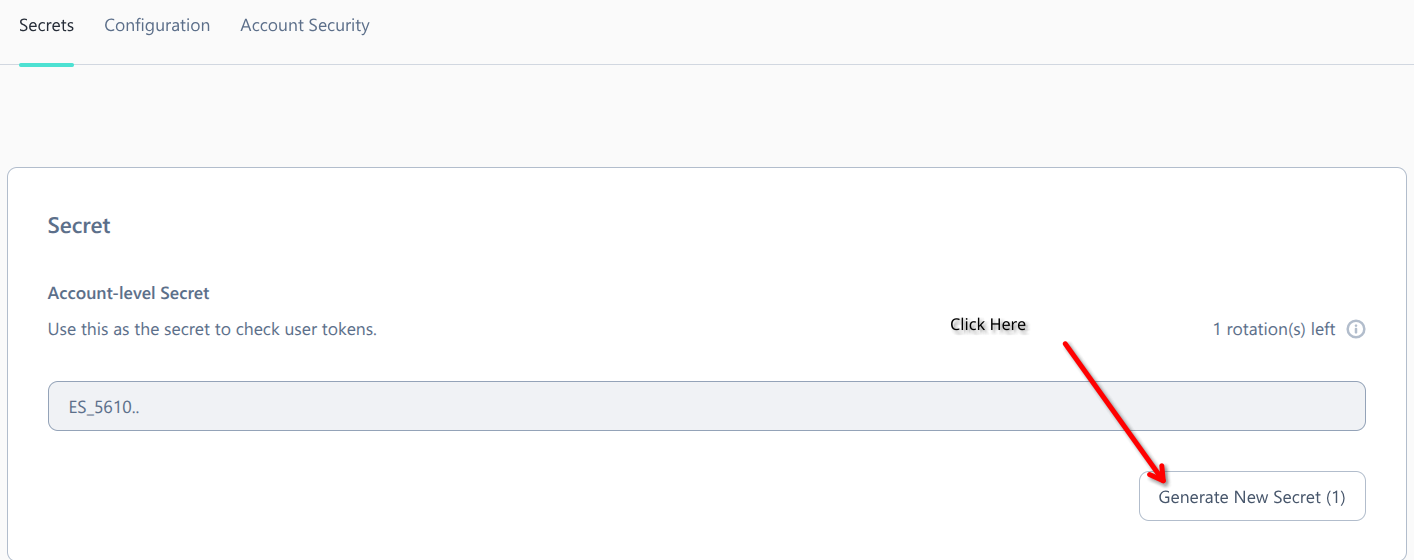
- Click Generate to reveal your Secret Key, then copy it.
Passive verification is great for UX — pair it with backend protection too.
Hidden captcha keeps the experience smooth for real visitors, but doesn’t rate-limit repeated requests from the same source. StoreGuard IP Rate Limiter does.
Adding hCaptcha to Your Store
Paste the Site Key and Secret Key into your hCaptcha plugin settings, enable it, and save. In Passive mode, hCaptcha protects your login, registration, checkout, and other forms — including the WooCommerce Block Checkout — without showing a challenge to genuine customers.
Frequently Asked Questions
What is hCaptcha Passive mode?
Passive mode, also called hidden mode, verifies visitors silently in the background with no checkbox or image puzzle shown. The user completes your form normally while hCaptcha validates them behind the scenes. It offers the smoothest experience but requires an hCaptcha Enterprise account.
Is hCaptcha Passive mode free?
No. Passive (hidden) mode is an Enterprise feature. hCaptcha’s standard checkbox challenge is available on the free plan, but the invisible Passive mode covered in this guide requires an Enterprise account.
Does hCaptcha use one Secret Key for all sites?
Yes. Unlike some captcha providers, hCaptcha issues a single account-wide Secret Key that is shared across every site you add. Each site has its own Site Key, but the Secret Key is the same for all of them, and generating a new secret invalidates the previous one.
What is the difference between hCaptcha and reCAPTCHA?
Both protect forms from bots, but hCaptcha emphasizes user privacy and data protection and is a common choice for sites that want to avoid Google reCAPTCHA. hCaptcha offers both an interactive checkbox challenge and, on Enterprise, a silent Passive mode.
What is the difference between the Site Key and Secret Key?
The Site Key is public and goes in your website’s front-end code to load hCaptcha. The Secret Key is private, stays on your server, and is used to verify responses with hCaptcha. Never expose the Secret Key in public code.
This guide is provided by i13 Web Solution. Looking to add captcha protection to WooCommerce? See our reCAPTCHA for WooCommerce plugin. Need help with setup? Contact us — we answer every email.