
reCAPTCHA v3 protects your WordPress or WooCommerce forms invisibly — instead of showing an “I’m not a robot” checkbox, it scores each visitor in the background and lets you block bots without interrupting real customers. To use it you need two values: a Site Key and a Secret Key. This guide shows how to get both, free, from Google. This is the Classic edition, which is free for typical usage and needs no billing account. (If you specifically need the Enterprise edition, see our reCAPTCHA v3 Enterprise keys guide.)
How to Get reCAPTCHA v3 Site Key and Secret Key
Step 1 — Open the reCAPTCHA key creation page
- Sign in to your Google account.
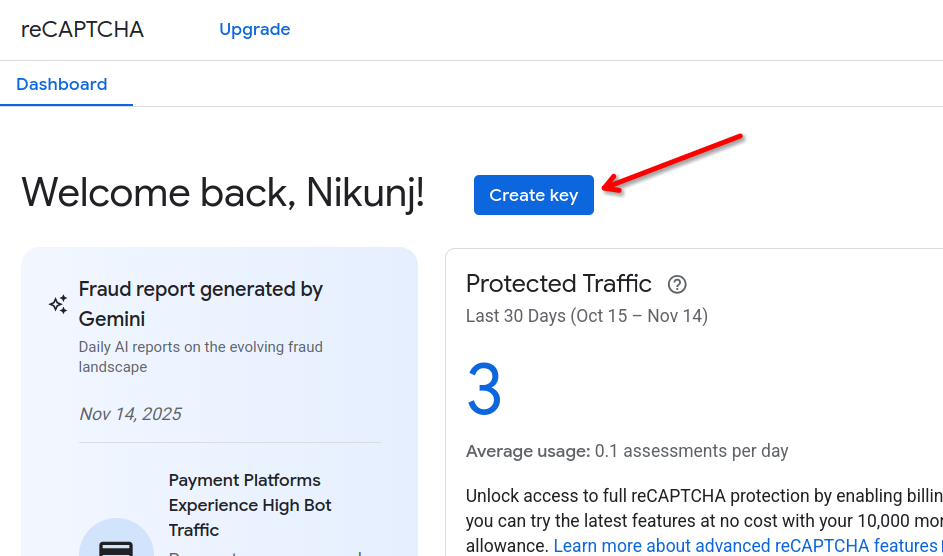
- Go to the Google Cloud reCAPTCHA console and click Create Key.
Step 2 — Name the key and choose the platform
- Enter a display name (your website name works well).
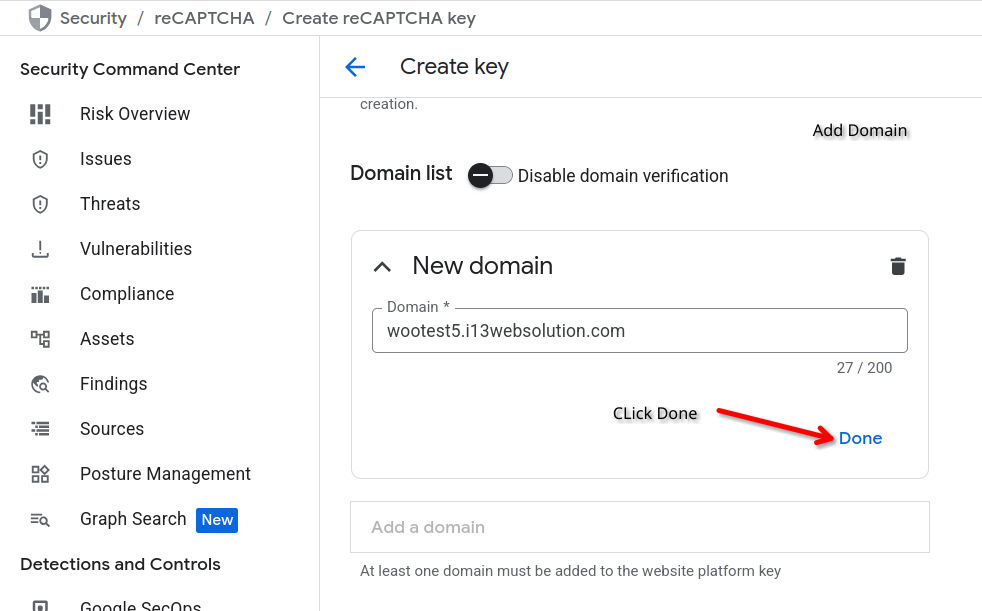
- Choose Web as the platform, then click Add a domain.
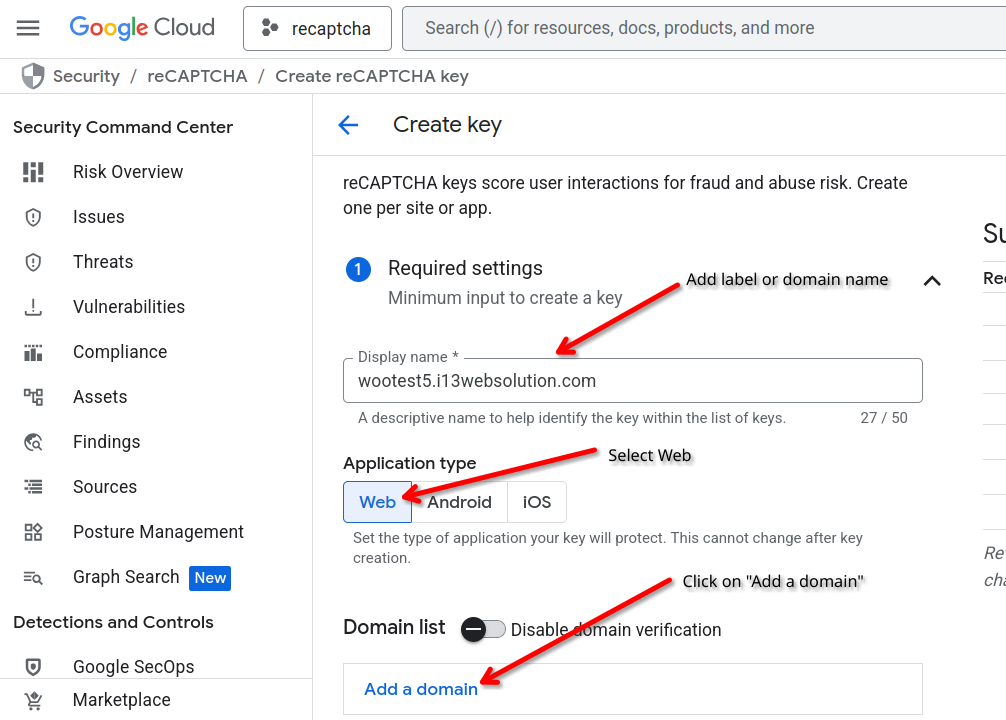
- Enter your domain name and click Done.
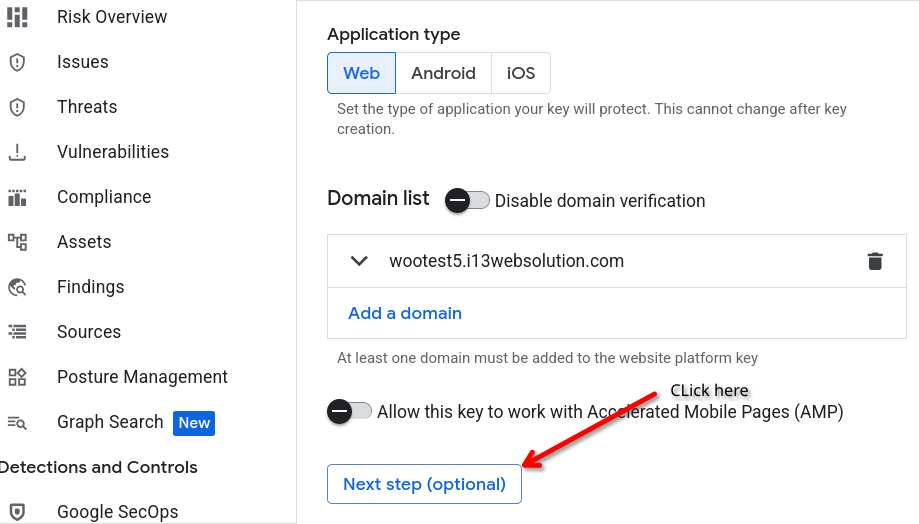
- Click Next Step.
Step 3 — Create the key
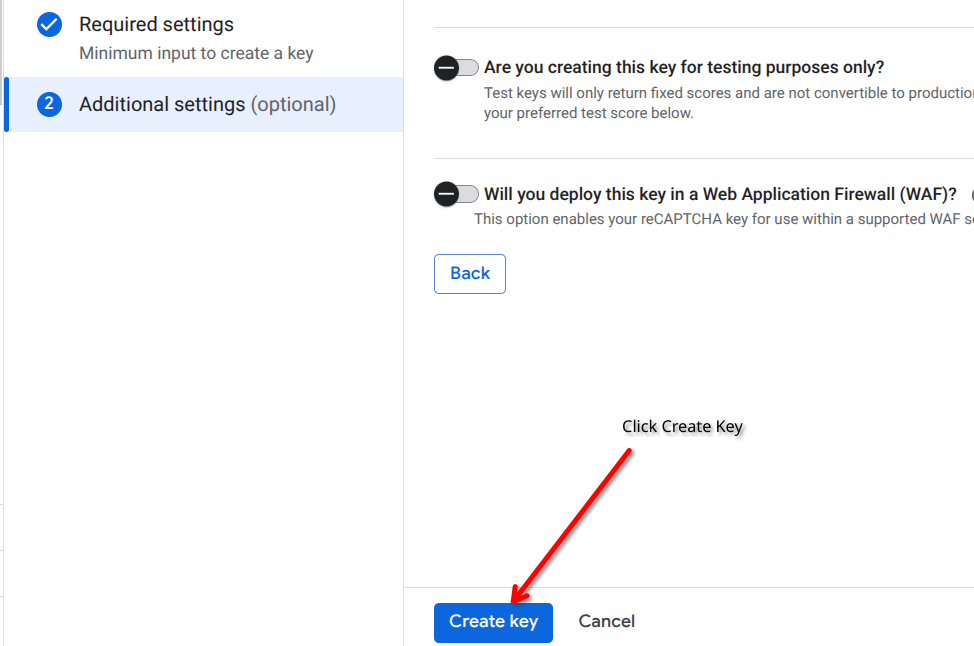
- Click the Create Key button at the bottom. Unlike v2, there is no “Will you use challenges?” option — reCAPTCHA v3 is score-based and runs invisibly, with no checkbox for the user.
Step 4 — Copy your Site Key
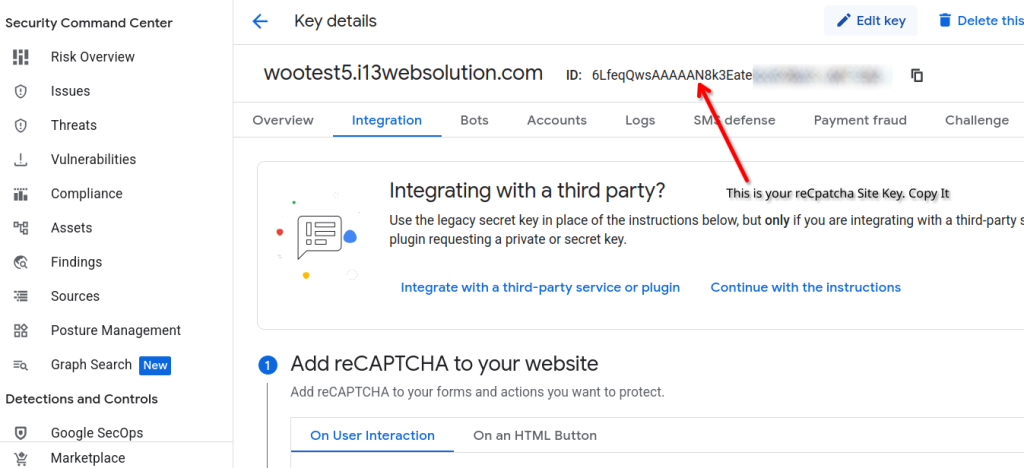
- Your Site Key is now shown. Copy it and paste it into your reCAPTCHA plugin.
Step 5 — Copy your Secret Key
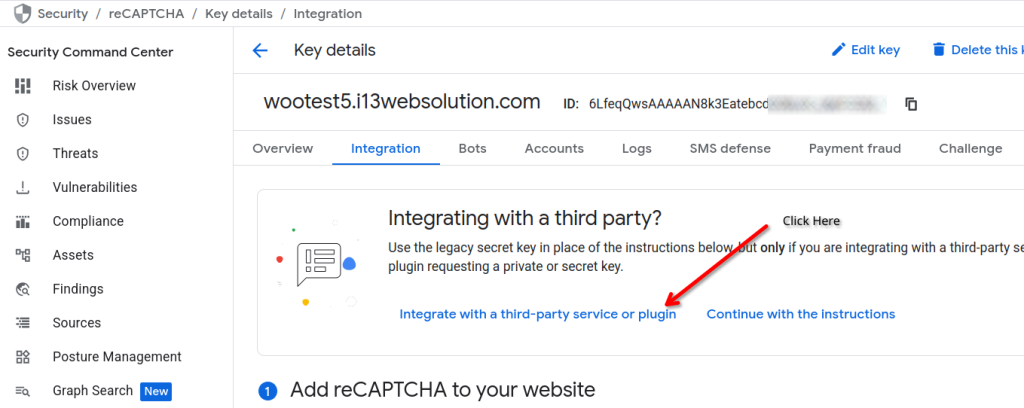
- Click Integrate with a third-party service or plugin.
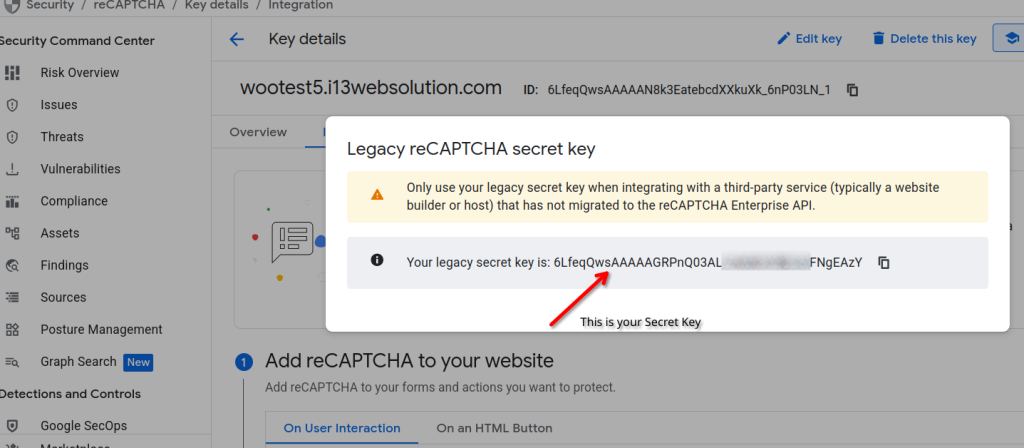
- Your Secret Key is shown. Copy it and paste it into your reCAPTCHA plugin alongside the Site Key.
Keys are in — now let’s talk about delivery expectations.
If you’re running WooCommerce, customers asking “when will this arrive?” is a constant support drain. Smart Delivery Estimates shows estimated delivery dates right on the product page, automatically.
Adding the Keys to Your Store
Paste the Site Key and Secret Key into the reCAPTCHA settings of the reCAPTCHA for WooCommerce plugin, select the reCAPTCHA v3 option, and save. Because v3 is score-based, it protects your login, registration, checkout, and other forms — including the WooCommerce Block Checkout — without showing a challenge to genuine customers.
Frequently Asked Questions
What is the difference between reCAPTCHA v2 and v3?
reCAPTCHA v2 shows the “I’m not a robot” checkbox that users click. reCAPTCHA v3 runs invisibly and returns a score from 0.0 to 1.0 indicating how likely a visitor is a bot, without interrupting them. v2 gives an explicit human confirmation; v3 is frictionless and better suited to checkout.
Is reCAPTCHA v3 free?
Yes. The Classic edition of reCAPTCHA v3 covered in this guide is free for typical website usage and does not require a Google Cloud billing account. Only the Enterprise edition, which runs through Google Cloud, has usage-based pricing.
What is the difference between the Site Key and Secret Key?
The Site Key is public and goes in your website’s front-end code to load reCAPTCHA. The Secret Key is private, stays on your server, and is used to verify the score with Google. Never expose the Secret Key in public code.
Does reCAPTCHA v3 show a checkbox?
No. reCAPTCHA v3 has no checkbox and no image challenges. It scores visitors silently in the background, typically showing only a small reCAPTCHA badge in the corner of the page. This makes it ideal for a smooth checkout experience.
Which plugin uses these reCAPTCHA v3 keys?
The reCAPTCHA for WooCommerce plugin uses the Site Key and Secret Key to enable reCAPTCHA v3 protection on WooCommerce and WordPress login, registration, checkout, and other forms.
This guide is provided by i13 Web Solution, makers of the reCAPTCHA for WooCommerce plugin. Need help with setup? Contact us — we answer every email.