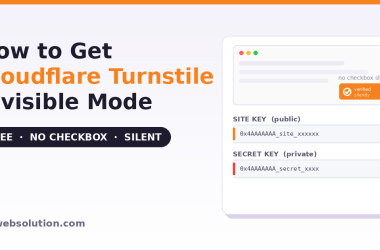

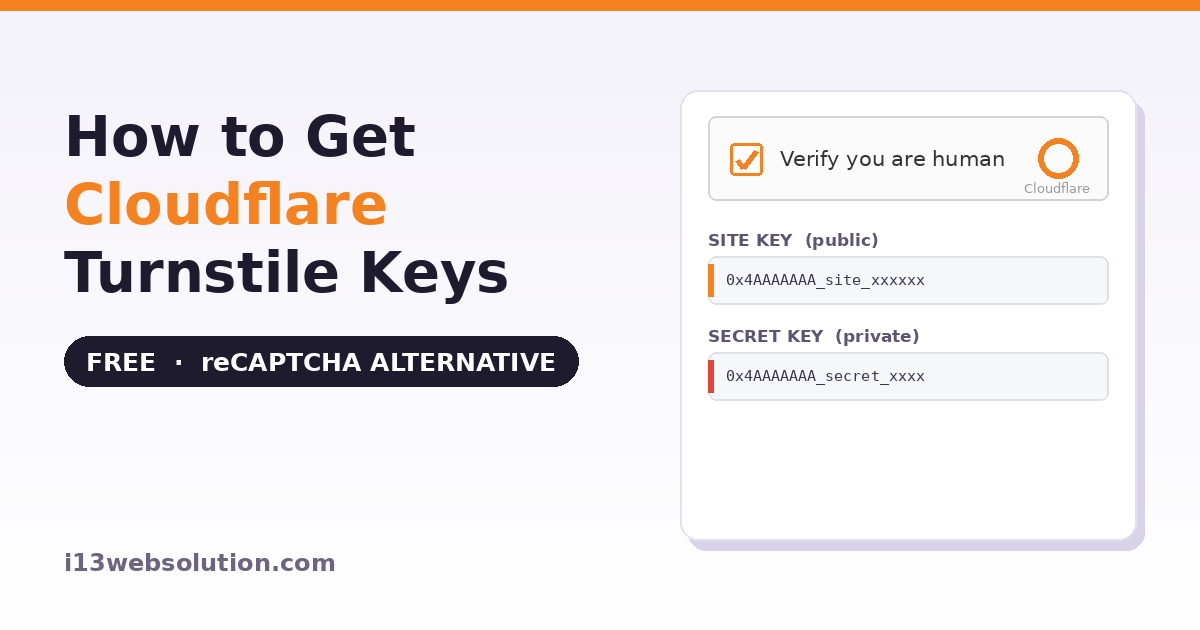
Cloudflare Turnstile is a free, privacy-friendly alternative to Google reCAPTCHA. It protects your WordPress or WooCommerce forms from bots without the tracking concerns of reCAPTCHA, and in its Managed mode it shows a simple checkbox-style challenge only when a visitor looks suspicious. To use it you need two values: a Site Key and a Secret Key. This guide shows how to get both from your Cloudflare account.
You’ll need a Cloudflare account (free). Your site does not have to use Cloudflare’s DNS or CDN to use Turnstile — a free account is enough.
How to Get Cloudflare Turnstile Site Key and Secret Key
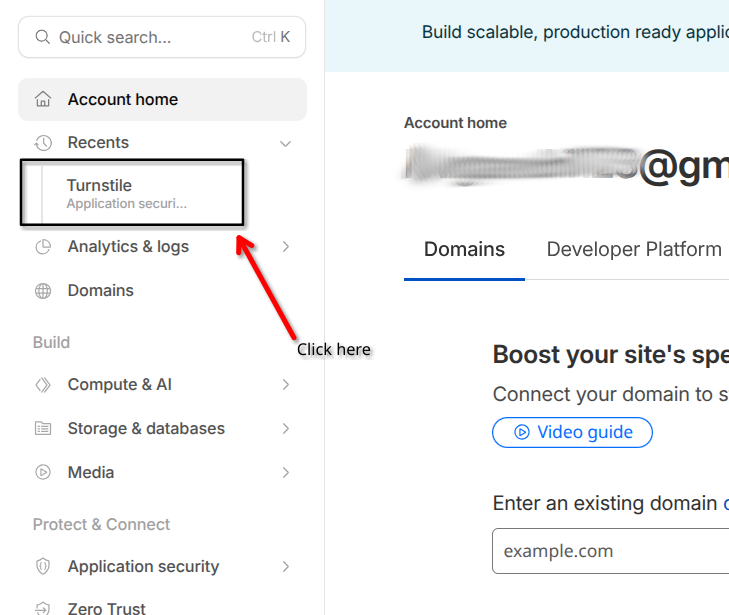
Step 1 — Open Turnstile in your Cloudflare dashboard
- Sign in to your Cloudflare account at dash.cloudflare.com.
- Click Turnstile in the left-hand menu.
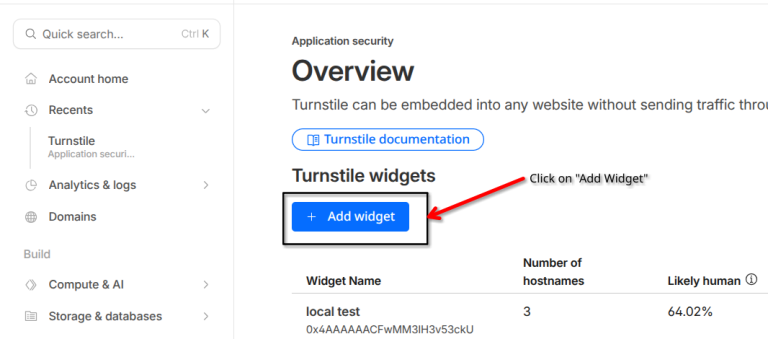
Step 2 — Add a widget
- Click the Add Widget button.
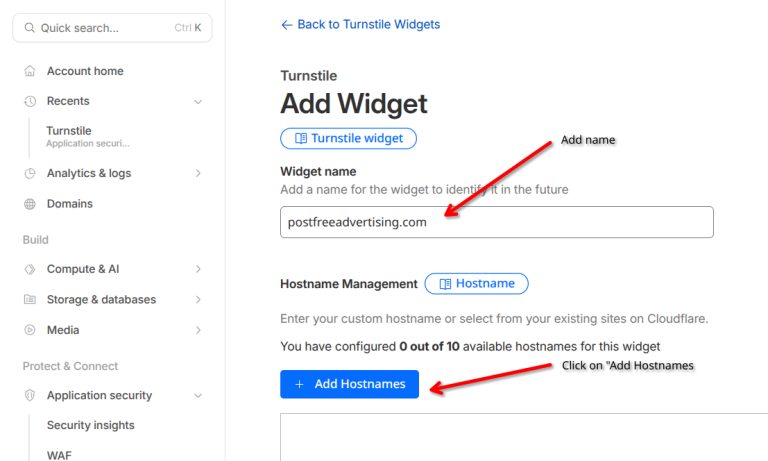
Step 3 — Name the widget and add your hostname
- Enter a widget name, then click Add Hostnames.
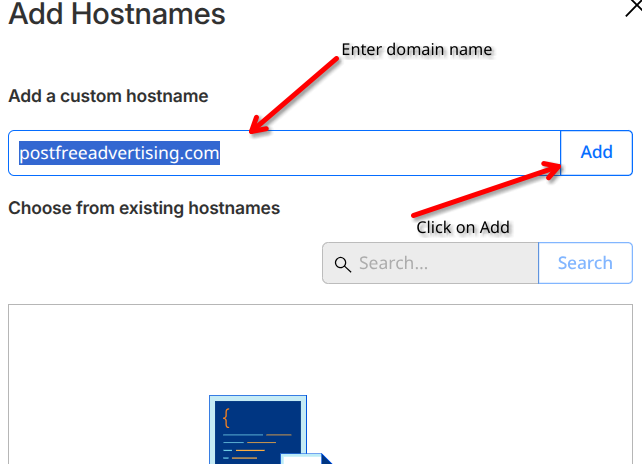
- Enter your domain name and click Add.
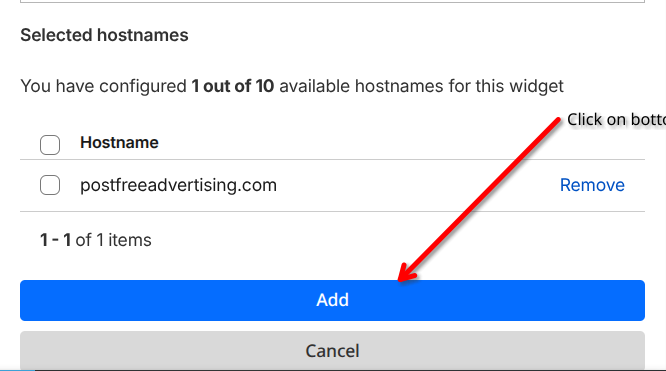
- Click the final Add button to confirm the hostname.
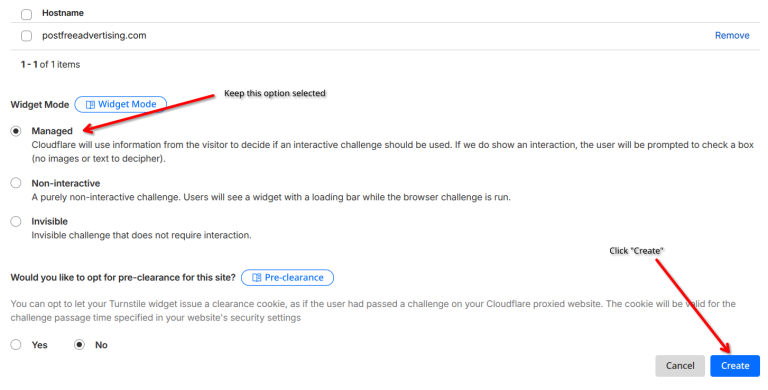
Step 4 — Choose the widget mode and create
- Keep the widget mode as Managed — Cloudflare’s adaptive mode, which shows an interactive checkbox challenge only when a visitor appears suspicious. Then click Create.
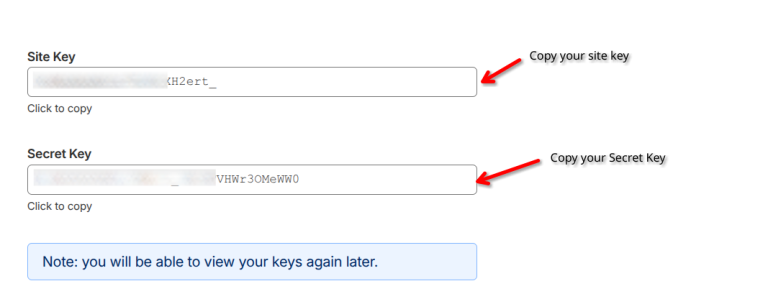
Step 5 — Copy your Site Key and Secret Key
- Cloudflare now shows your Site Key and Secret Key. Copy both and paste them into your Turnstile plugin settings.
Turnstile handles the bot-blocking — here’s the next layer.
If you’re also seeing repeated failed logins or aggressive scraping from the same handful of IPs, that’s outside what Turnstile covers. StoreGuard IP Rate Limiter is built for exactly that.
Adding Turnstile to Your Store
Paste the Site Key and Secret Key into your Turnstile plugin settings, enable it, and save. Turnstile then protects your login, registration, checkout, and other forms — including the WooCommerce Block Checkout — as a lightweight, privacy-respecting alternative to reCAPTCHA.
Frequently Asked Questions
Is Cloudflare Turnstile free?
Yes. Cloudflare Turnstile is free to use, and you do not need a paid Cloudflare plan. You only need a free Cloudflare account to create a widget and get your Site Key and Secret Key.
Do I need to use Cloudflare for my website to use Turnstile?
No. Your website does not have to use Cloudflare’s DNS, CDN, or proxy. Any site can use Turnstile with just a free Cloudflare account — you simply add your hostname when creating the widget.
What is the difference between Turnstile and reCAPTCHA?
Both protect forms from bots, but Turnstile is designed to be privacy-friendly and typically avoids the tracking associated with Google reCAPTCHA. Turnstile’s Managed mode shows a challenge only when needed, while reCAPTCHA v2 always shows a checkbox and v3 scores users invisibly. Turnstile is a common choice for sites that want bot protection with fewer privacy concerns.
What is Turnstile Managed mode?
Managed mode is Cloudflare’s adaptive setting: it decides automatically whether to show an interactive checkbox challenge based on how suspicious a visitor looks. Most visitors pass without interaction, while suspicious ones get a checkbox to complete.
What is the difference between the Site Key and Secret Key?
The Site Key is public and goes in your website’s front-end code to display the Turnstile widget. The Secret Key is private, stays on your server, and is used to verify responses with Cloudflare. Never expose the Secret Key in public code.
This guide is provided by i13 Web Solution. Looking to add captcha protection to WooCommerce? See our reCAPTCHA for WooCommerce plugin. Need help with setup? Contact us — we answer every email.