
The reCAPTCHA for WooCommerce plugin needs three values when you use the Enterprise edition of reCAPTCHA v3: a Site Key, a Google Cloud Project ID, and a Google Cloud API Key. This guide covers getting all three from the Google Cloud Console. (reCAPTCHA v3 scores traffic invisibly in the background rather than showing a checkbox. Not sure whether you need Enterprise or the simpler Classic edition? Google compares the tiers here — most small stores are fine with Classic keys, which are quicker to set up.)
Jump to: Site Key · Project ID · API Key
Part 1: How to Get the reCAPTCHA v3 Enterprise Site Key
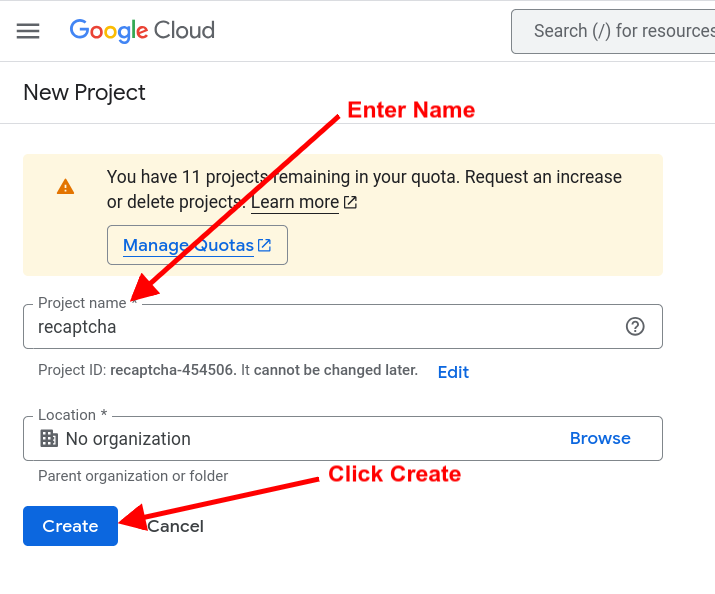
Step 1 — Create or select a Google Cloud project
- Open the Google Cloud Console and sign in with your Google account.
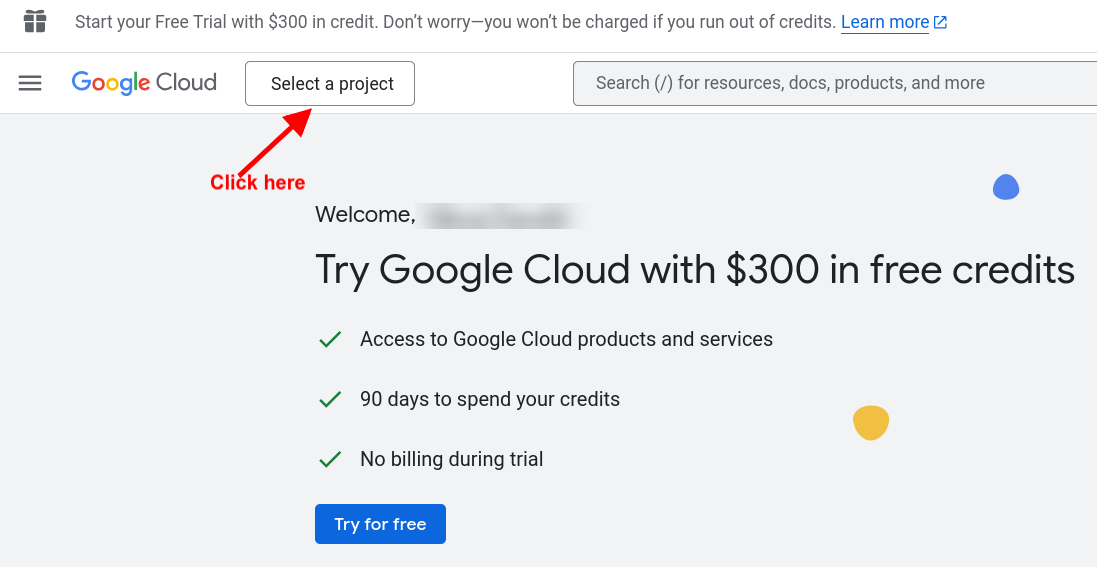
- Click the project selector at the top of the page.
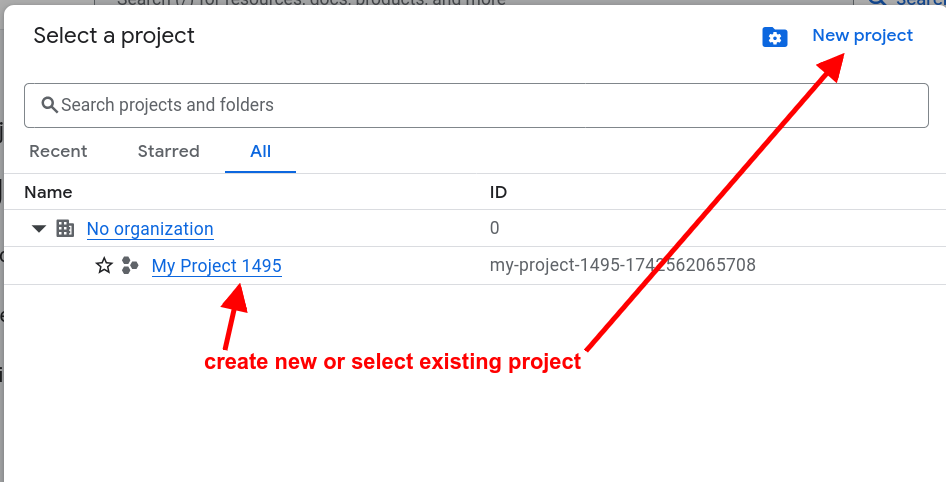
- Select an existing project, or create a new one.
Step 2 — Enable the reCAPTCHA Enterprise API
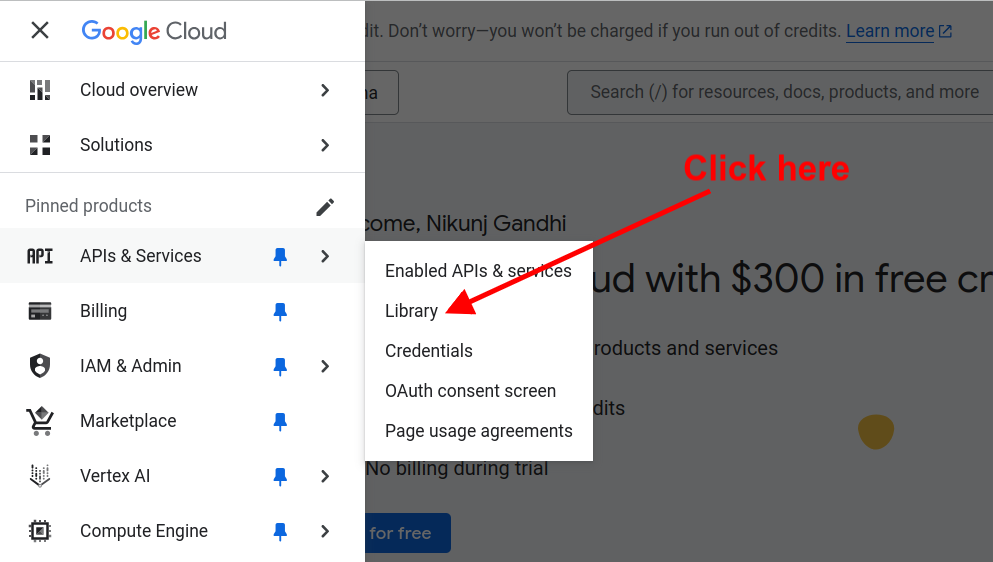
- With your project selected, open the Navigation menu (hamburger icon, top left).
- Go to APIs & Services → Library.
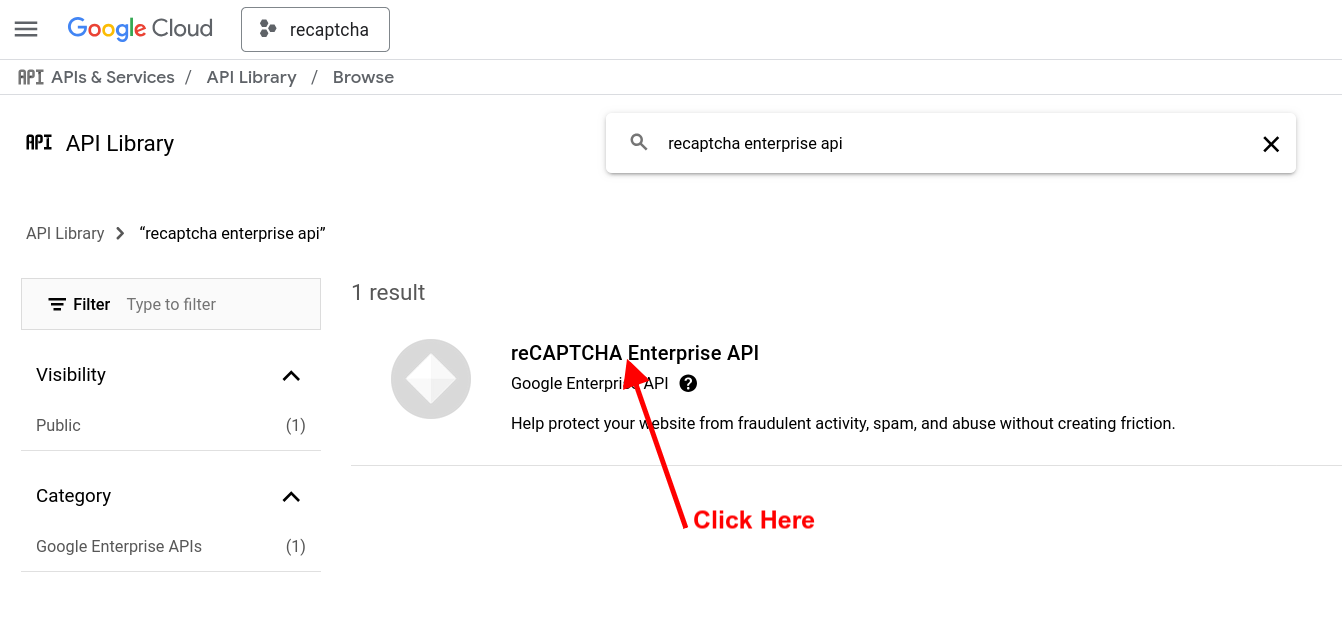
- Search for reCAPTCHA Enterprise API.
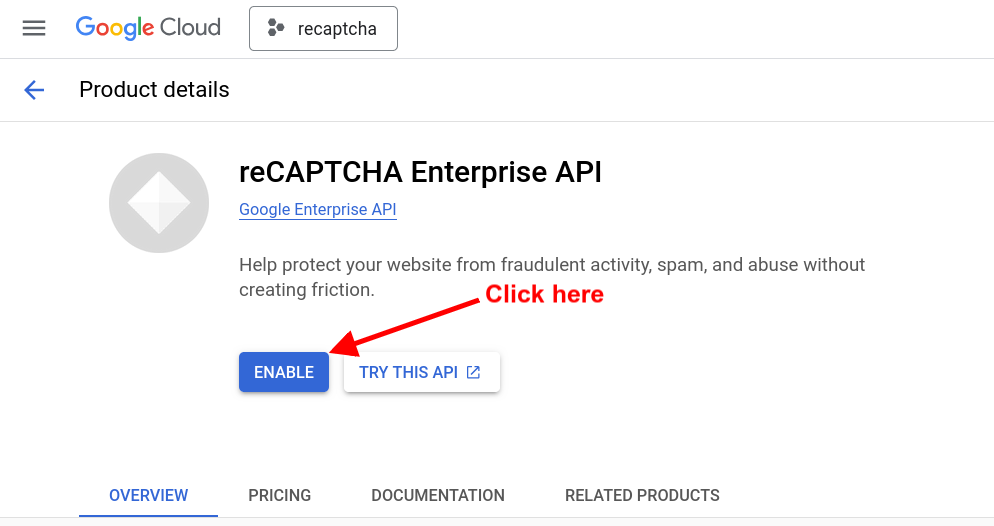
- Open it and click Enable.
Step 3 — Create the reCAPTCHA v3 key
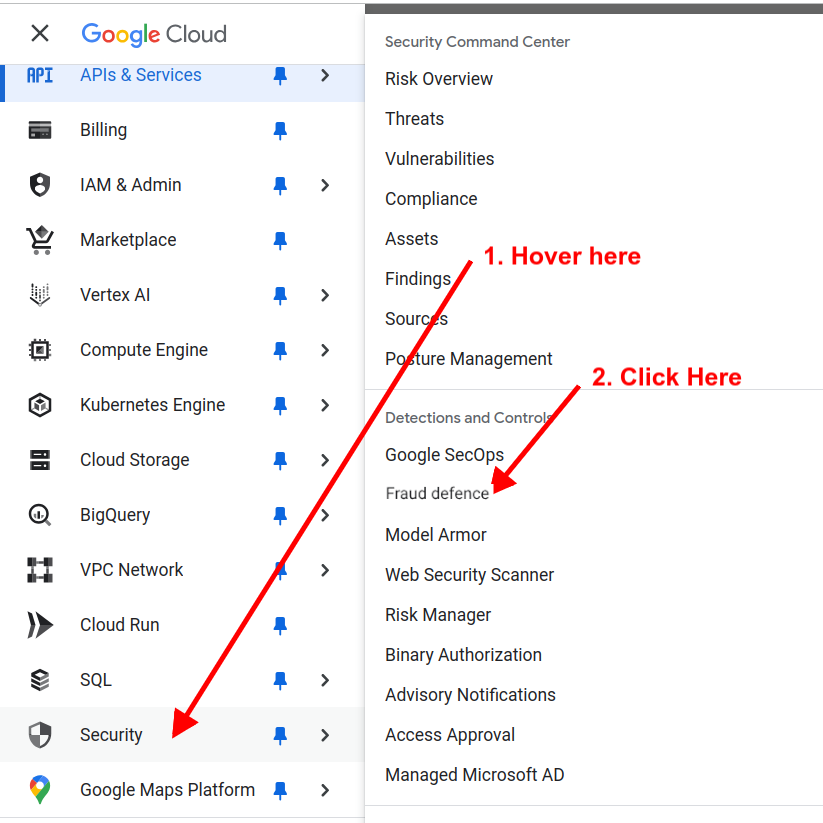
- Open the Navigation menu and go to Security → reCAPTCHA (Fraud prevention).
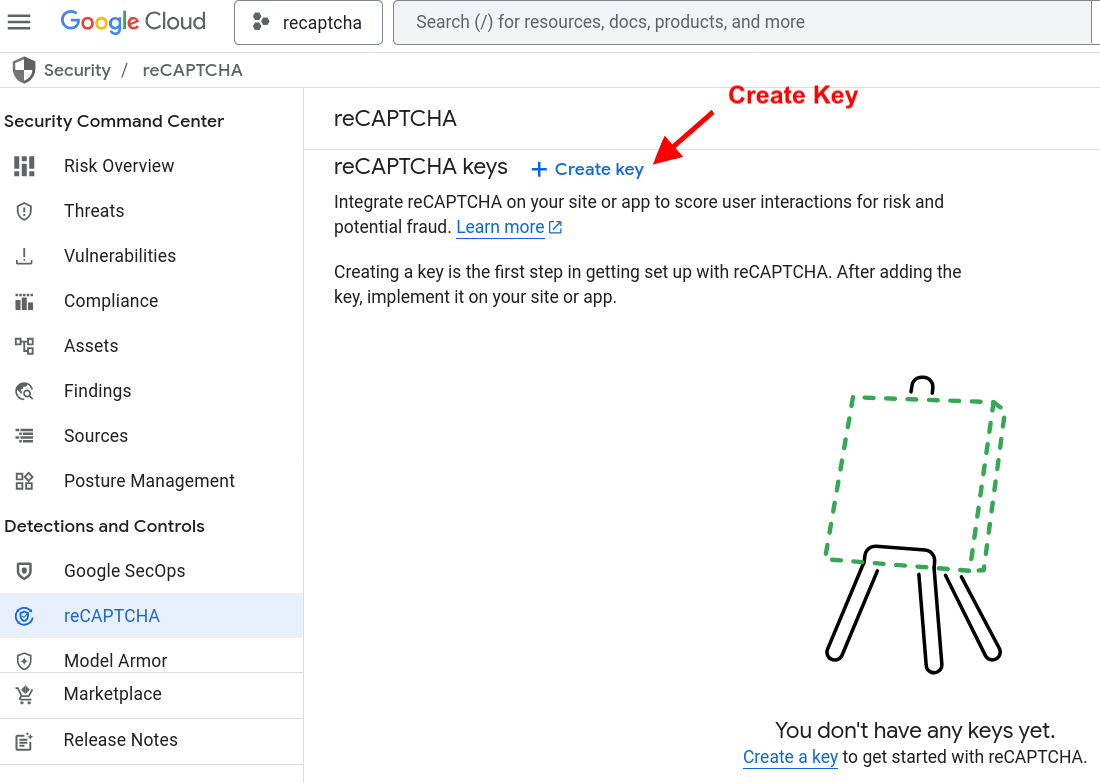
- Click Create key.
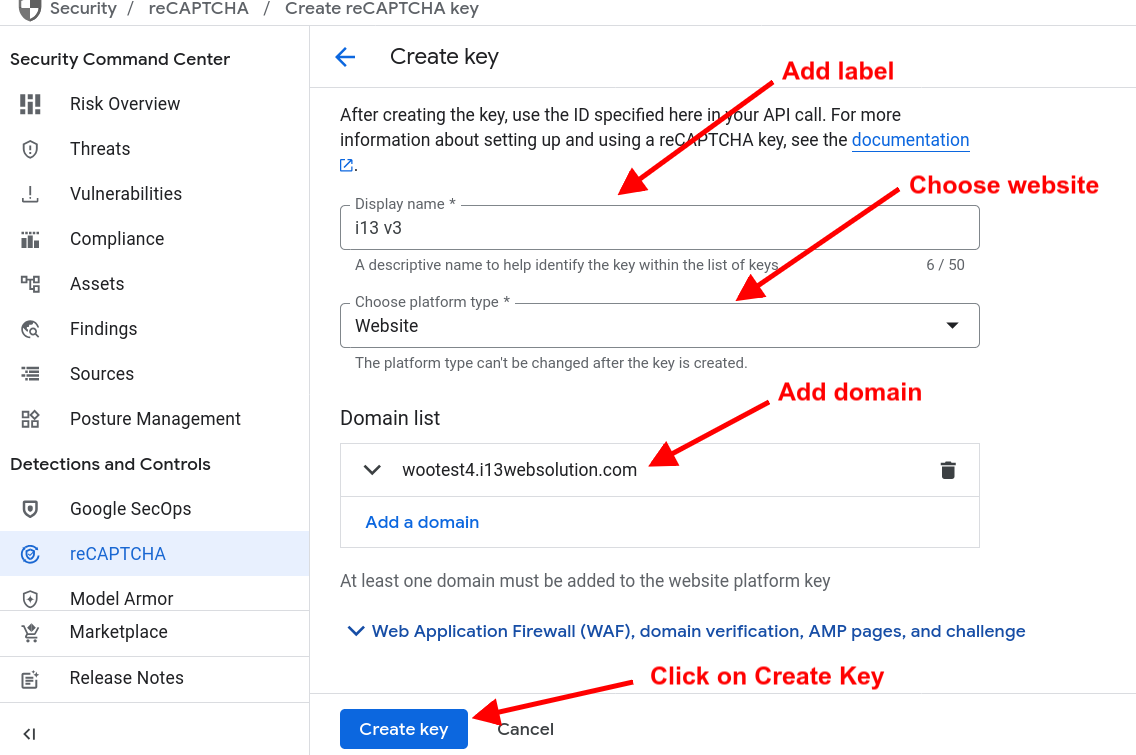
- Enter a display name, choose Web as the platform, and add the domain where you’ll use reCAPTCHA. For reCAPTCHA v3, leave it as a score-based key (no checkbox challenge) so it runs invisibly. Then click Create key.
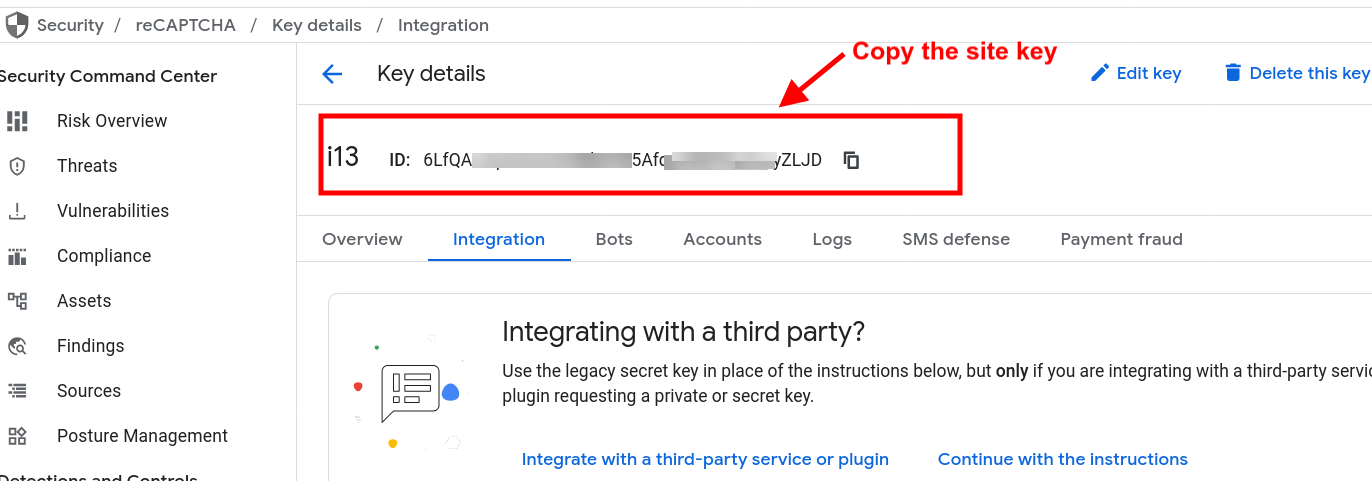
- Your Site Key is now created — copy it.
Part 2: How to Get the Google Cloud Project ID
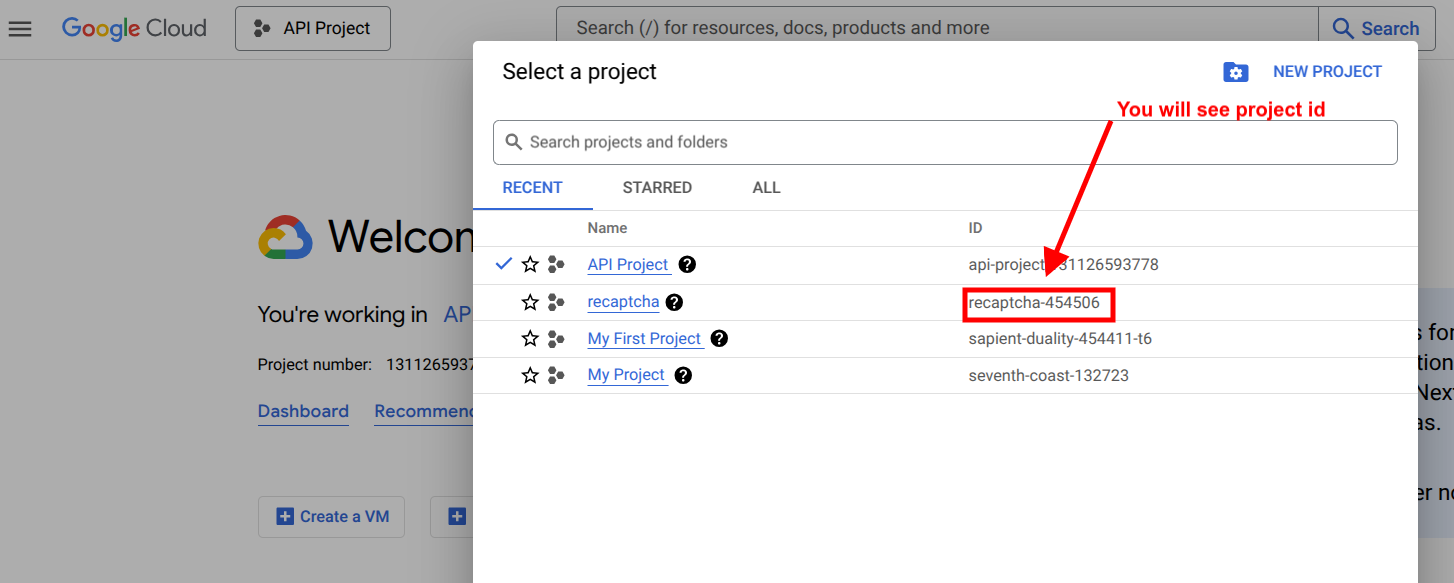
- Open the Google Cloud Console and click the project selector.
- The list shows each project alongside its ID. Copy the Project ID of the project where you created the Site Key.
Part 3: How to Get the Google Cloud API Key
- In the Google Cloud Console, select the project where you created the Site Key.
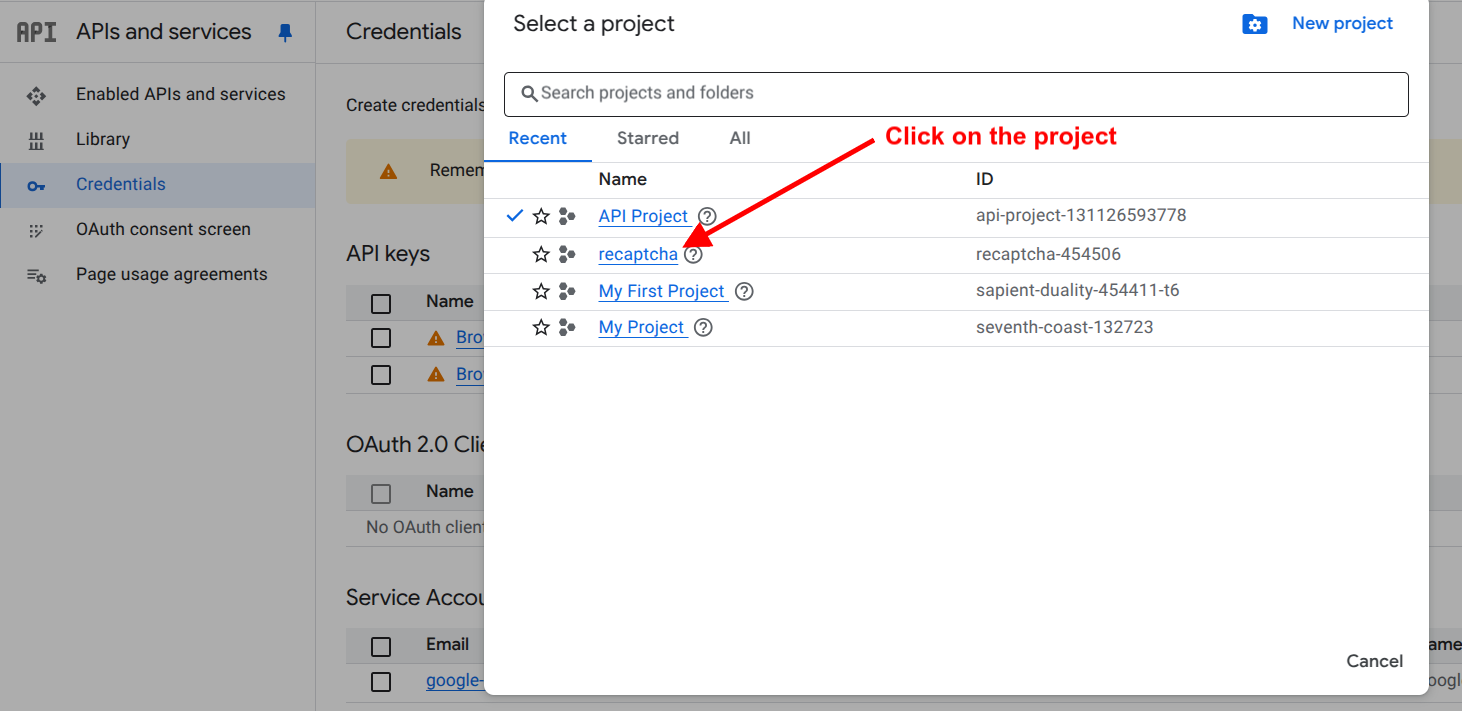
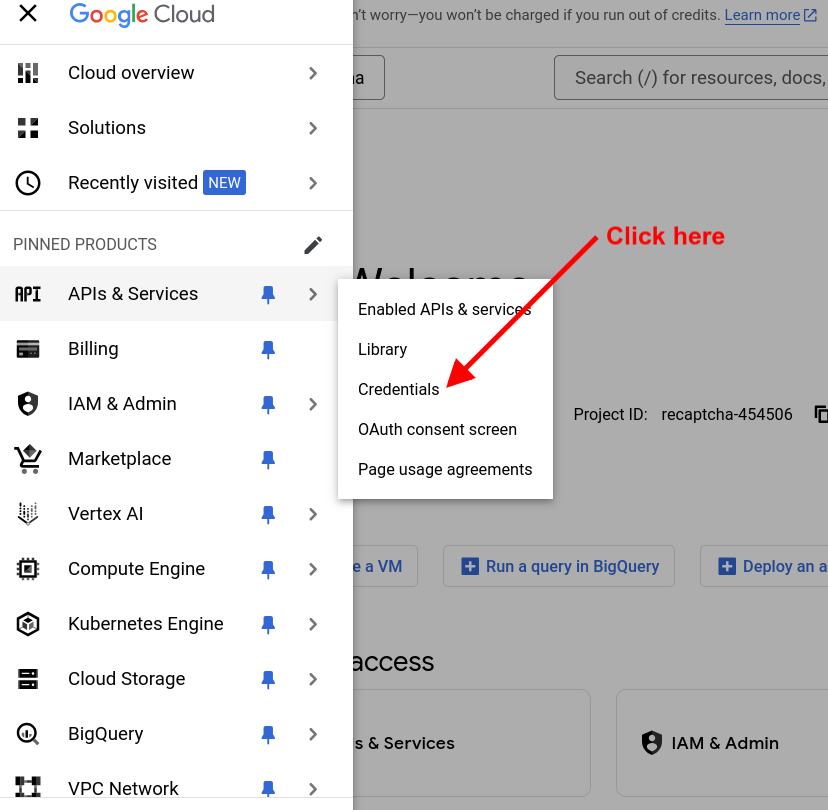
- Open the Navigation menu → APIs & Services → Credentials.
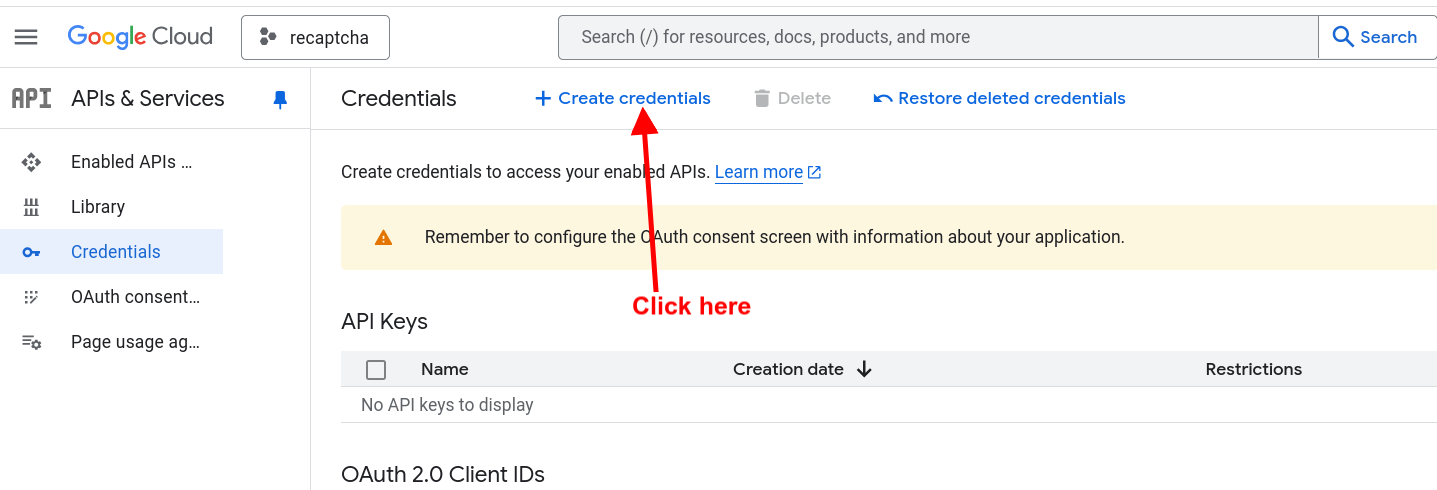
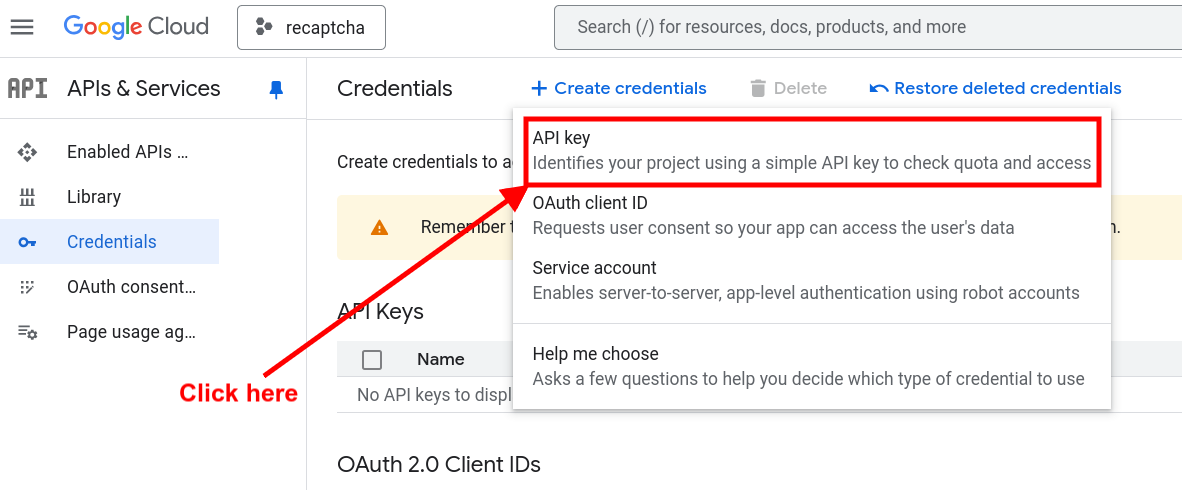
- Click Create Credentials, then choose API key.
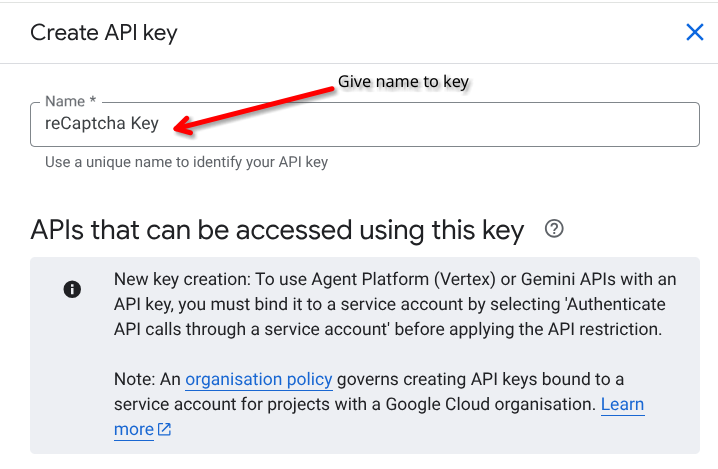
- Give the key a clear name.
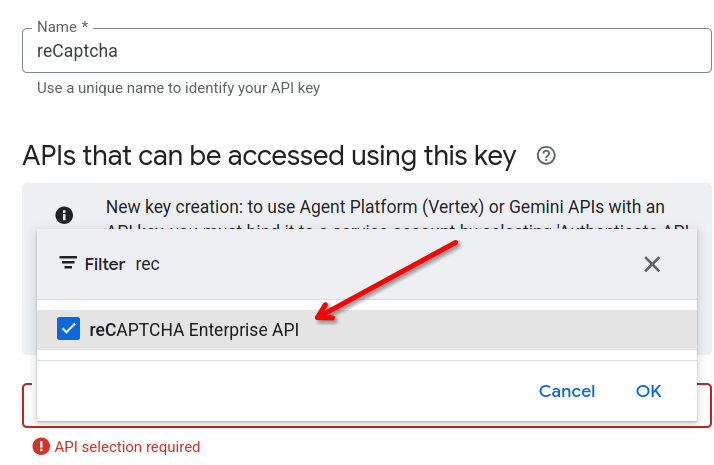
- Under API restrictions, restrict the key to the reCAPTCHA Enterprise API only — important for security, so the key can’t be misused for other Google services.
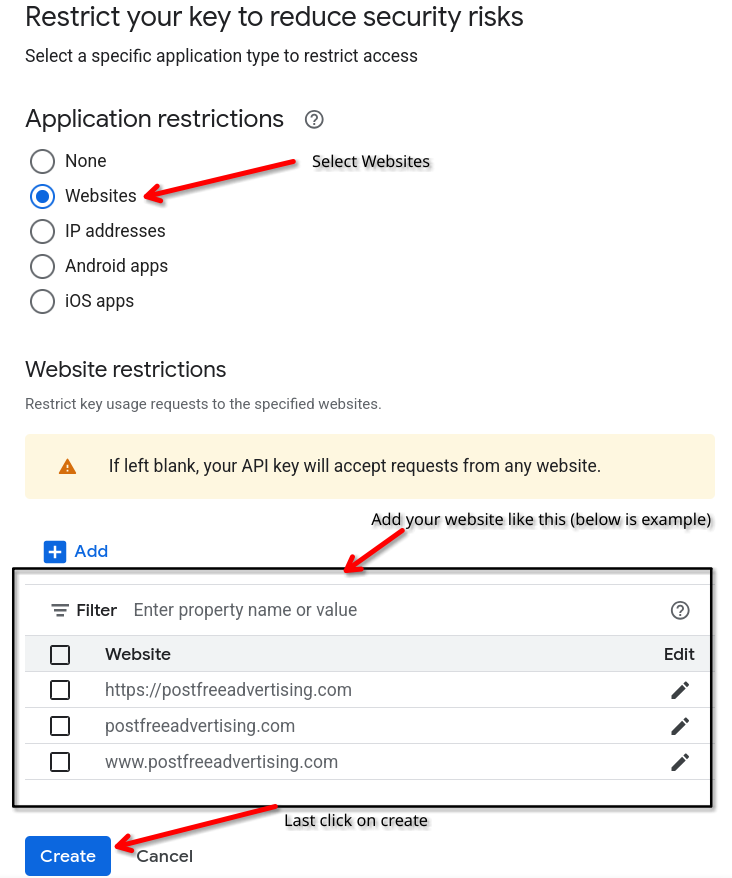
- Set an Application restriction for your website, as shown.
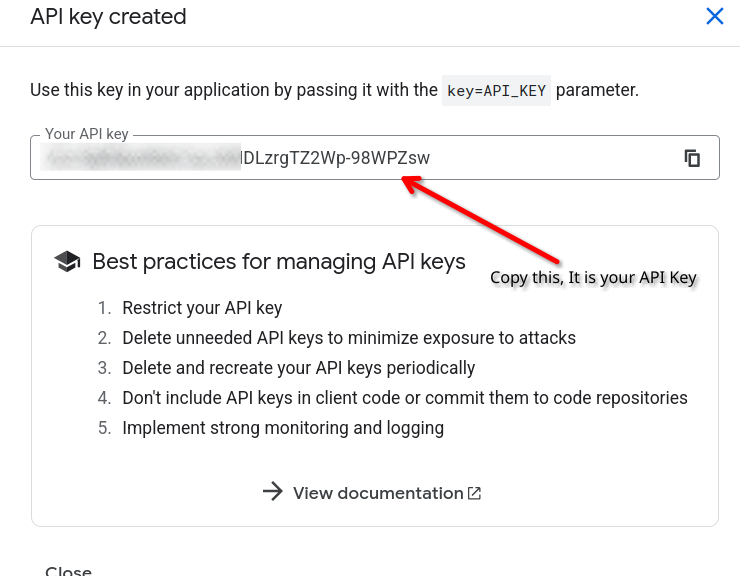
- Your API Key is ready to use.
Running Enterprise-level protection? Worth rounding it out.
reCAPTCHA v3 scores requests silently, but IP-level abuse (brute force, scraping) still needs its own layer. StoreGuard IP Rate Limiter pairs well with it.
Adding the Keys to Your Store
Once you have all three values — Site Key, Project ID, and API Key — paste them into the reCAPTCHA settings of the reCAPTCHA for WooCommerce plugin, choose the reCAPTCHA v3 (Enterprise) option, and save. Because v3 is score-based, it protects your login, registration, checkout, and other forms — including the WooCommerce Block Checkout — without showing a challenge to genuine customers.
Frequently Asked Questions
What is the difference between reCAPTCHA v2 and v3?
reCAPTCHA v2 shows a challenge — the “I’m not a robot” checkbox or image puzzles — that users interact with. reCAPTCHA v3 runs invisibly and returns a score from 0.0 to 1.0 indicating how likely the visitor is a bot, letting you act on the score without interrupting genuine users. v3 is better for a frictionless checkout; v2 gives an explicit human confirmation.
What is the difference between reCAPTCHA Classic and Enterprise keys?
Classic reCAPTCHA needs only a Site Key and Secret Key and is free for typical usage. Enterprise reCAPTCHA runs through Google Cloud, requires a Site Key, Project ID, and API Key, and offers advanced scoring and fraud analysis with usage-based pricing. Most small stores can use Classic; choose Enterprise if you need its advanced features.
Do I need a Google Cloud billing account for reCAPTCHA Enterprise?
reCAPTCHA Enterprise is a Google Cloud service and generally requires a Cloud project with billing enabled, though Google provides a free monthly assessment allowance. Review Google’s current reCAPTCHA Enterprise pricing before enabling it in production.
Why should I restrict the API key to the reCAPTCHA Enterprise API?
Restricting the key limits it to reCAPTCHA calls only, so that if the key is ever exposed it cannot be used to run up charges or access other Google Cloud services in your project. It is a standard security best practice for any Google Cloud API key.
This guide is provided by i13 Web Solution, makers of the reCAPTCHA for WooCommerce plugin. Need help with setup? Contact us — we answer every email.